See profit for every linked supplier
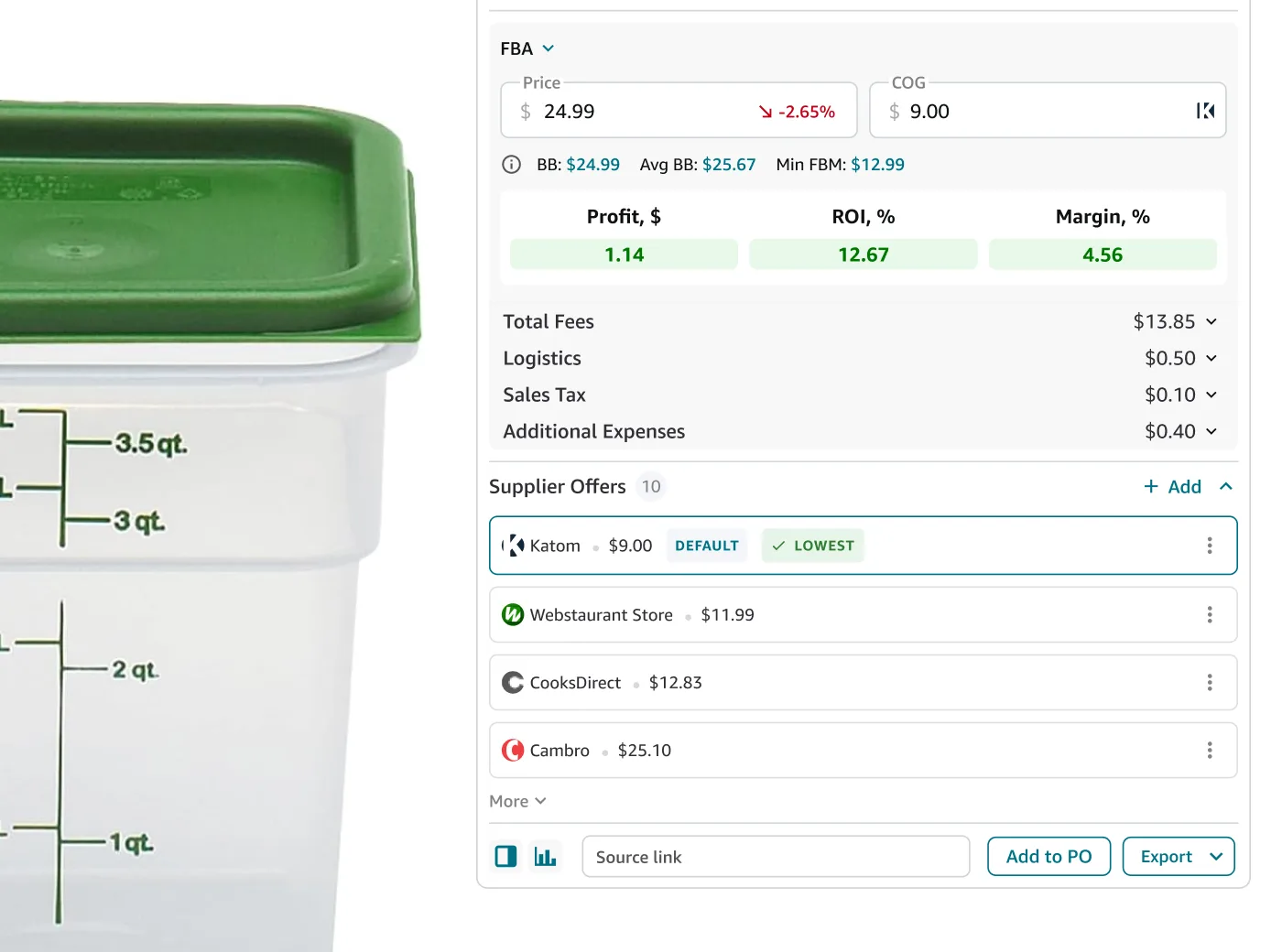
Compare every saved supplier offer and instantly see how each one changes your profit, ROI, and margin. Add new offers without leaving the product page.
Comparing suppliers shouldn't mean recalculating everything
No retyping a cost, no separate calculator, no guessing which supplier's actually cheapest.
Switch suppliers, watch the numbers change
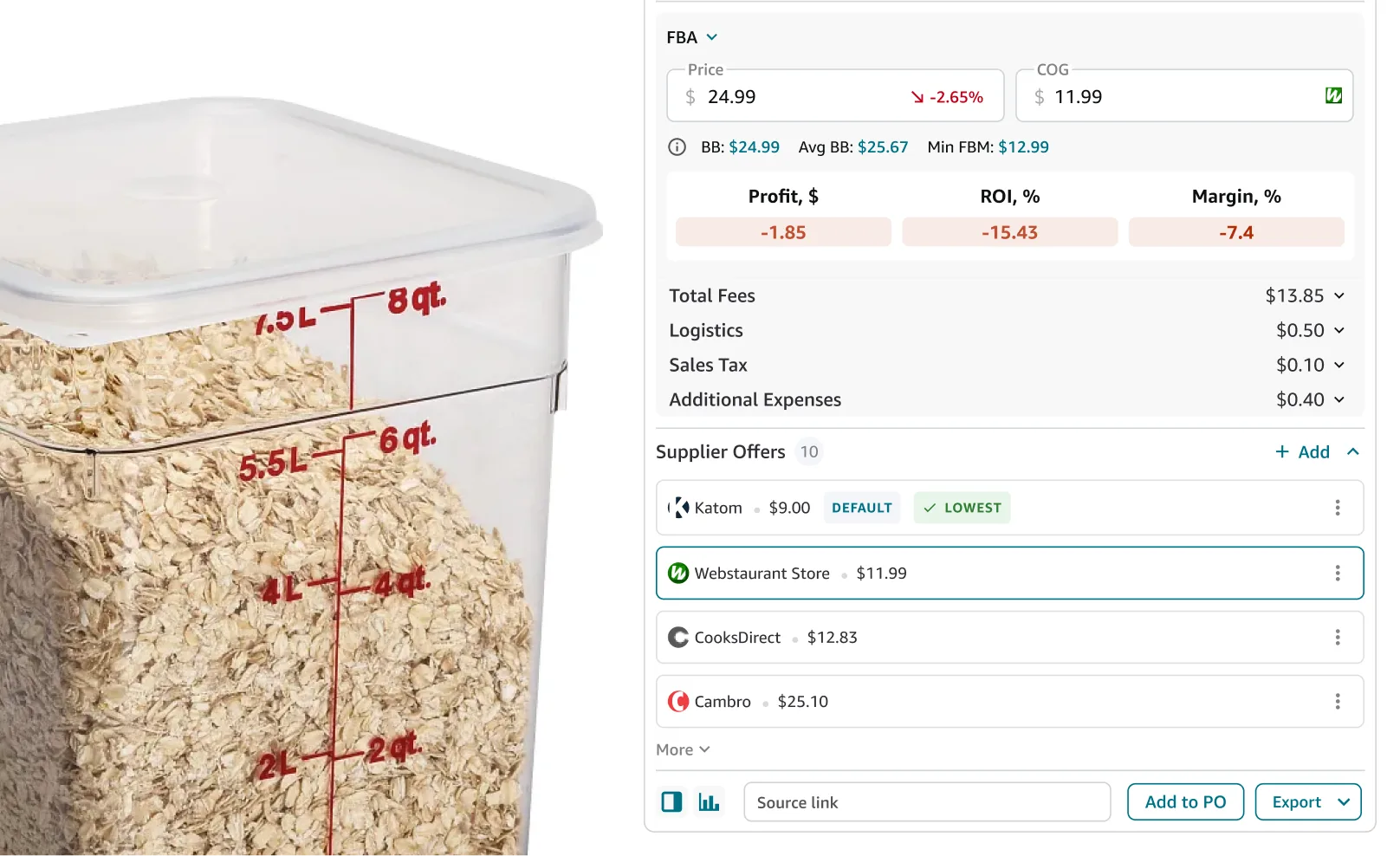
Each offer keeps its own cost. Click a different supplier and profit, ROI, and margin recalculate on the spot — no retyping a cost each time.
Supplier details stay with every offer
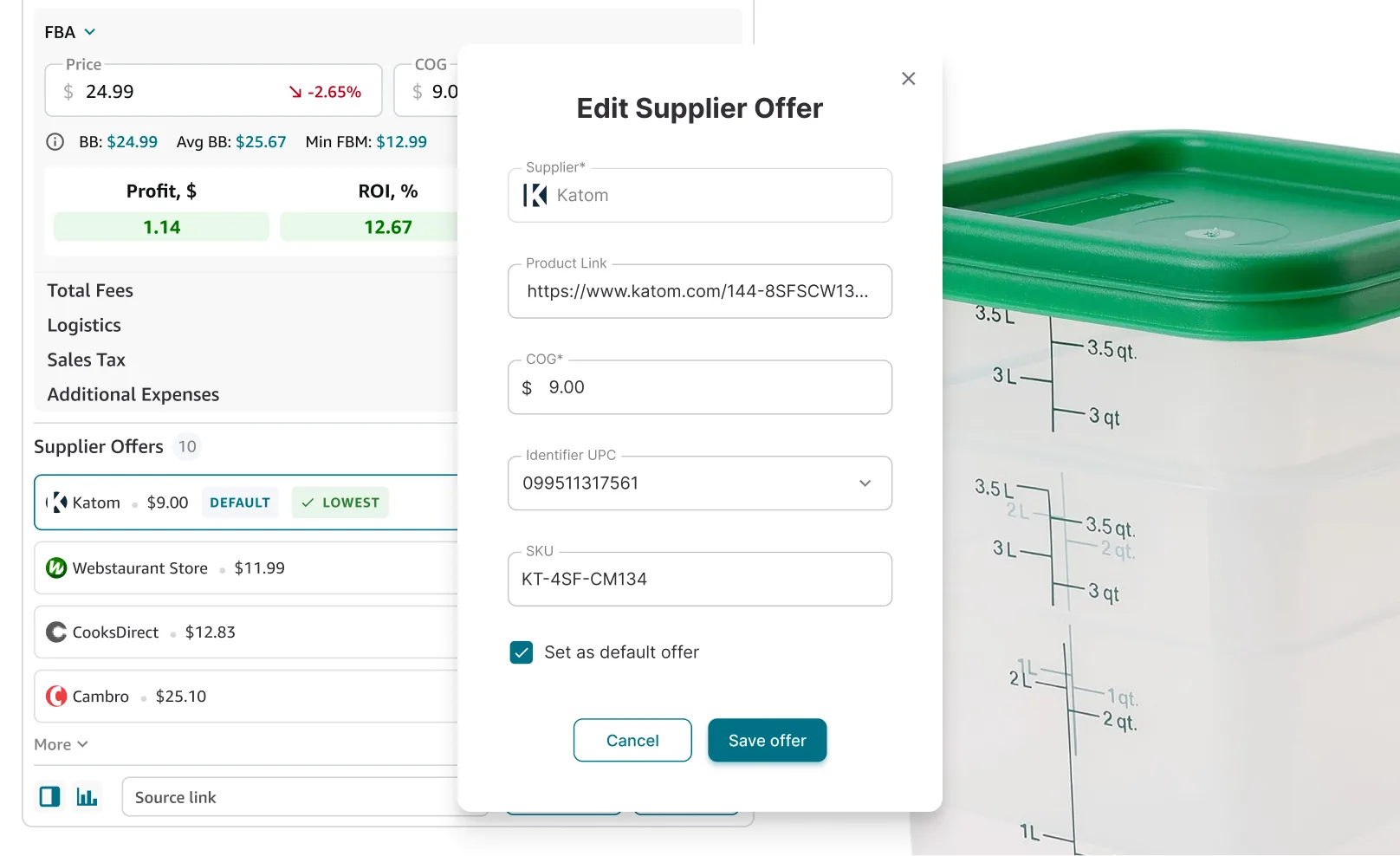
Each offer saves your SKU and the matching UPC alongside the cost — the same identifiers carry through when you create a purchase order.
Jump straight to the product or the supplier
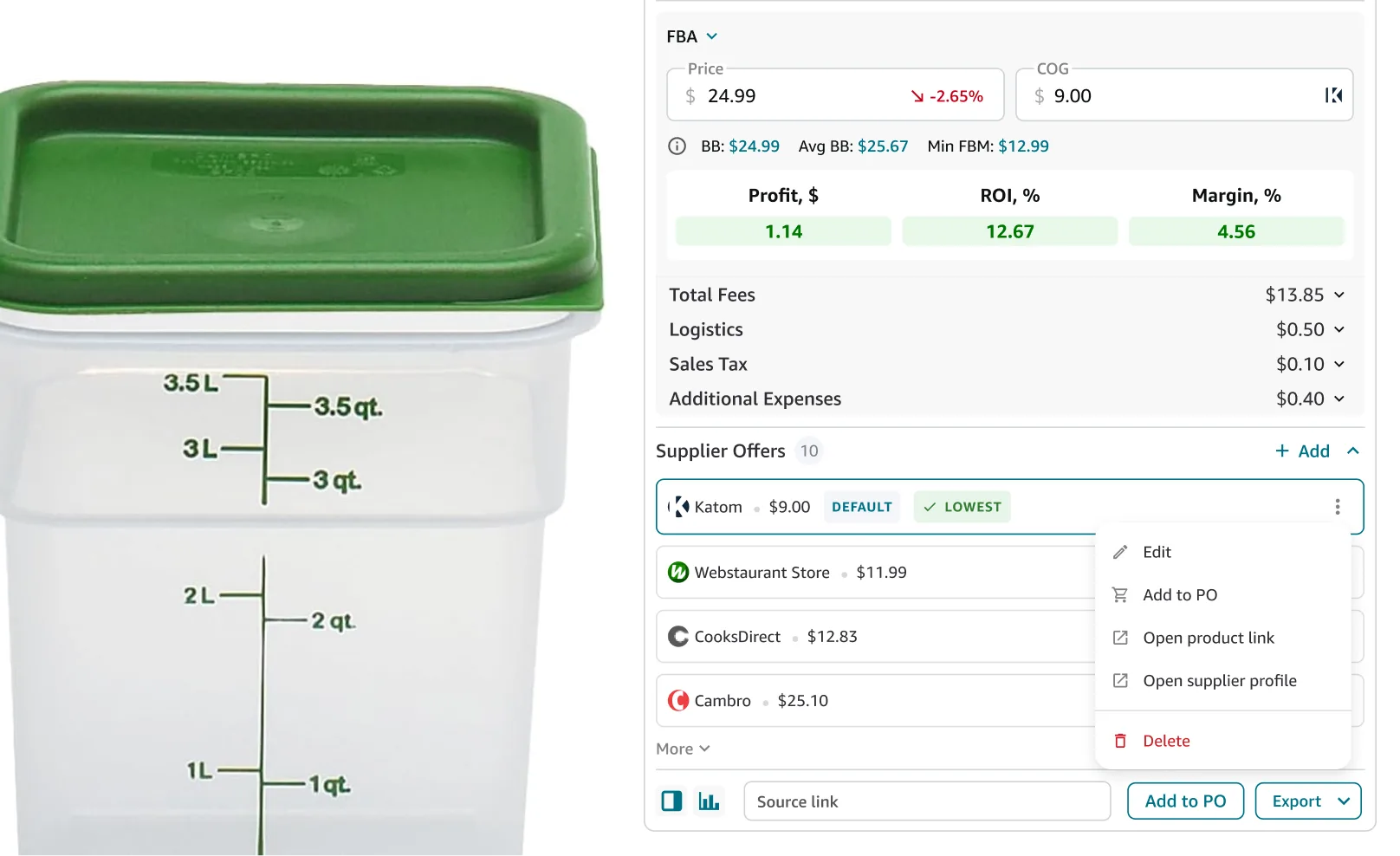
Every offer's menu links to the product page and supplier profile — or click the icon in COG for a shortcut. No digging through bookmarks.
Everything needed to decide who to source from
Every detail an offer keeps track of, and every action available on it.
Live profitability
Profit, ROI, and margin update instantly as you switch offers.
Offer list
Every linked offer shown with supplier name and price.
Default & Lowest
See which supplier you source from and which offer is actually cheapest.
SKU and UPC per offer
Save supplier SKU and the matching UPC alongside each supplier's price.
Persistent selection
Your choice is saved and restored the next time you open the product.
Quick add via link
Paste a URL. Match to an existing supplier or create one on the spot.
Edit or remove anytime
Set a new default, update details, or delete an offer.
Add to PO
Add a supplier offer to a purchase order without leaving Amazon.
Built to work together
Extension features that help you research, evaluate, and source with confidence.

Calculate true profit, ROI, and margin right here in one click.

Save context on a product alongside your supplier offers.

Check Amazon prices and stock from other sellers on this listing.

See which size or version actually sells before you commit to one.
Saved once. Used everywhere
Supplier offers automatically connect product research, purchasing, and supplier management.
Uploading a price list creates supplier offers automatically, no manual entry required.
SKU and UPC from the offer are pre-filled when you build a PO for that product.
Supplier offers saved in the extension sync automatically with Products Database.
Every offer belongs to a supplier profile. Creating the offer creates their profile too.
Frequently Asked Questions
Visit Help Center
How do I add a supplier offer to a product?
What does the Default offer mean?
Can I save offers from multiple suppliers for the same product?
Does creating an offer automatically create a supplier profile?
Do supplier offers sync with the Seller Assistant web app?
Does changing the COG field update the saved supplier offer?
Ready to compare supplier offers in one click?
Install the extension and see how every supplier changes your profit, ROI, and margin before you source.
Not sure which plan fits your sourcing workflow? Chat with our team — we're happy to help.