List products on Amazon in bulk
Select from your sourced inventory, set fulfillment details, and submit directly to Amazon. The product data you already have does the work.
Get StartedFrom sourced product to live listing in 3 steps
No context switching. The entire listing flow happens where your sourcing happened.


Listing on Amazon was always the bottleneck
Category templates, flat files, upload errors, processing queues. A separate job that had nothing to do with sourcing. Lister removes the entire step.
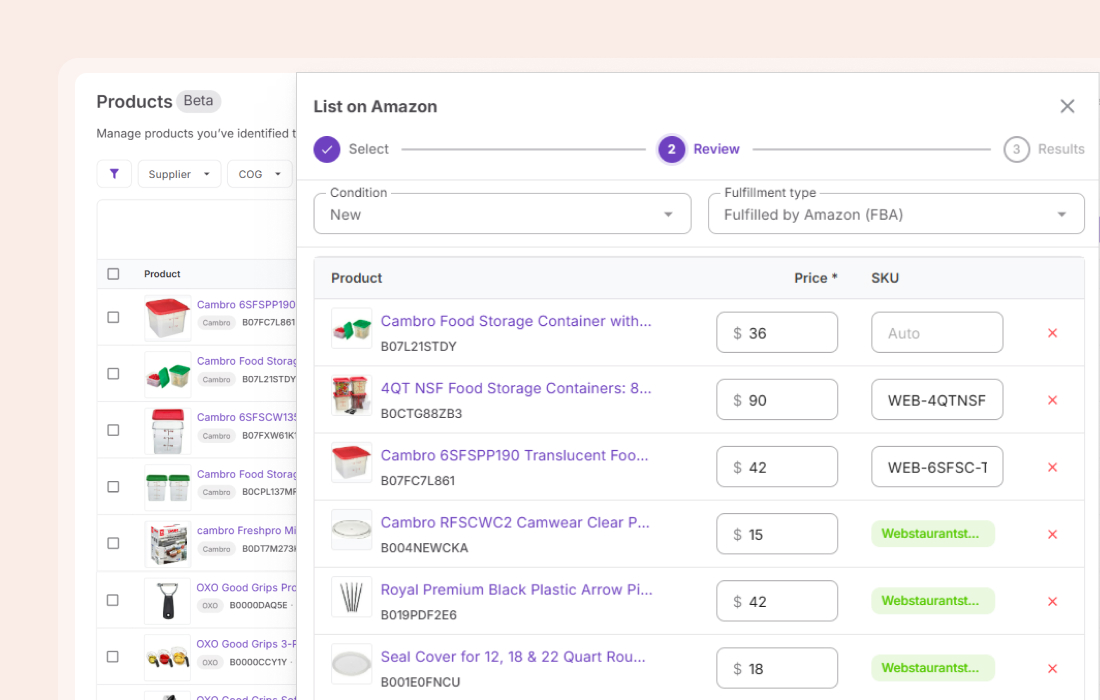
List dozens of products in one pass
Select your entire shortlist, set details for the batch, and submit at once. No product-by-product workflow, no repeat steps.
Manage your Amazon listings
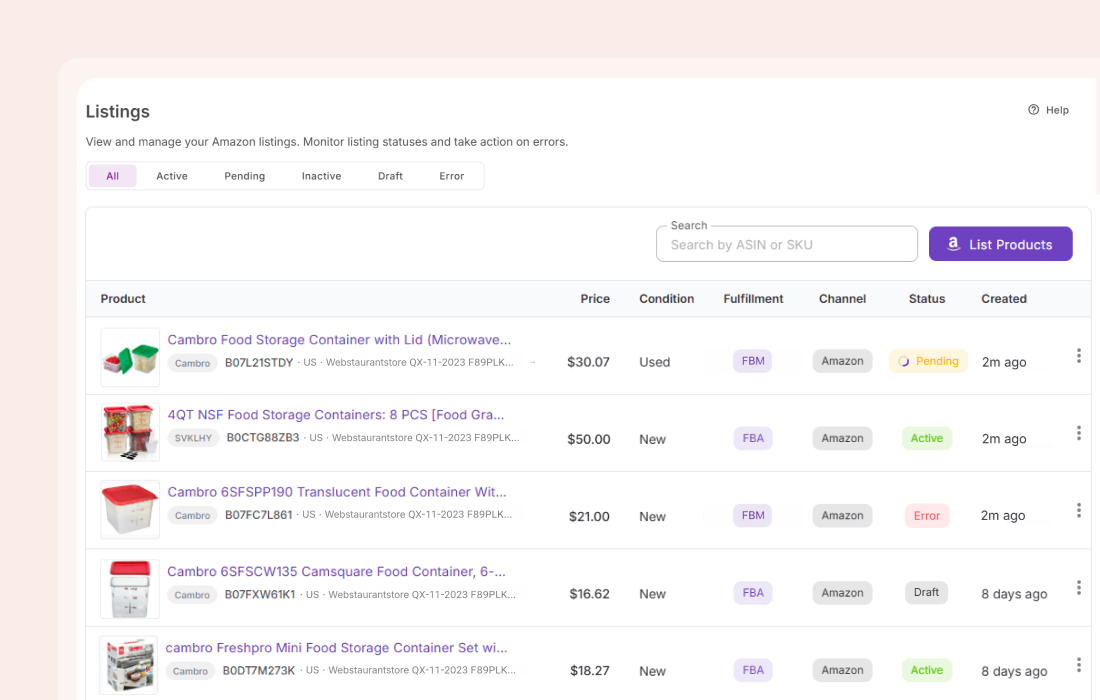
View all your listings in one place. Activate and deactivate them without touching Seller Central.
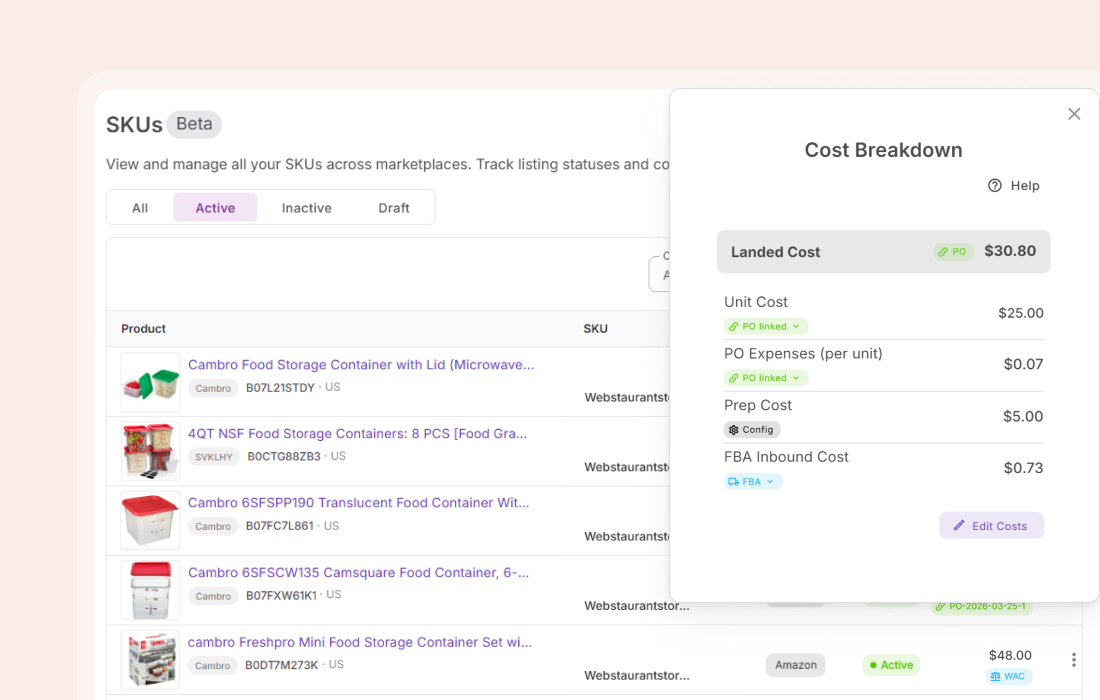
Know your actual per-unit cost
Unit cost, order expenses, prep fees, inbound costs — pulled from POs, shipments, and cost settings.
Everything Lister handles
The details that matter when you are listing at volume.
Bulk submission
Submit multiple products in one pass
Restriction pre-check
Eligibility is verified before listing — avoid wasted submissions
FBA and FBM
Set fulfillment type per batch — FBA or FBM
Condition options
New, used, or refurbished. Set per batch
SKU suggestions
Suggested SKUs from the purchase order fill in first. New SKUs follow the format in Settings > SKUs & listings
Listing management
Deactivate and reactivate listings in one click
Lister is one step. These tools are what make it count
Products come from your sourced inventory. Once listed, SKUs and inbound shipments stay in sync automatically.
The pipeline starts long before listing
Fill your pipeline before anything reaches Lister.
Turn a supplier catalog into a shortlist of profitable products.
AnalyzeSee brand revenue, BSR, and Buy Box share before committing.
DiscoverCheck margins and validate products on any Amazon page.
DiscoverTrack competitor storefronts and uncover sourcing opportunities.
DiscoverHow-tos and guides
How to Use Seller Assistant’s Lister
Create Amazon listings faster with Seller Assistant Lister – streamline bulk listing, manage SKUs, and move from sourcing to live offers without Seller Central.
How to Use Seller Assistant’s Listings Tool
Manage Amazon listings in one place with Seller Assistant’s Listings Tool. Track status, fix errors, and keep your inventory buyable and aligned.
Frequently Asked Questions
Visit Help CenterCan I list products without a Purchase Order?
What fulfillment types does Lister support?
Can I track listing errors?
What happens to listing status after submission?
Can I deactivate listings without Seller Central?
How are SKUs handled?
Where do SKU format and listing defaults come from?
Ready to list without the friction?
From sourced inventory to live Amazon listing — no flat files, no Seller Central, no switching tools.
Get StartedNot sure which plan fits your sourcing workflow? Chat with our team — we're happy to help.