Turn Price Lists Into Profitable Amazon Purchase Orders
Build purchase orders, check profit and ROI, send them to prep with a line review, and see what the prep received.
Get Started


From a price list shortlist to a purchase order
Watch a shortlist become a purchase order with costs, profit and an Excel file for your supplier, in about 90 seconds. Pick a chapter to start at that step.

Turn your next supplier price list into a purchase order.
Add a product to a purchase order from its Amazon page

Turn your next shortlist into a purchase order.
How to Add a Product to a Purchase Order From Amazon
3 steps between a price list and an ordered purchase order
Go from product selection to an ordered purchase order without re-entering data.
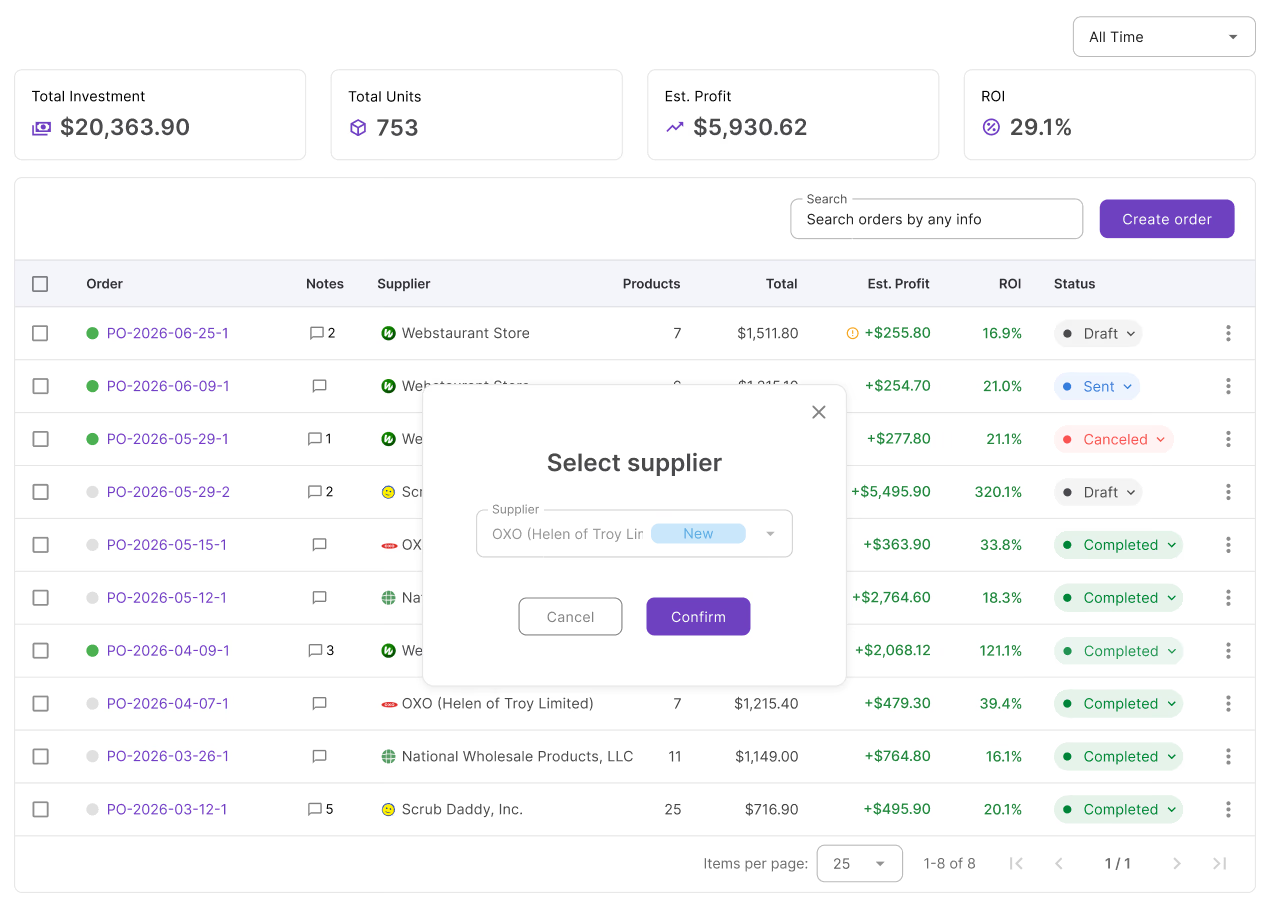
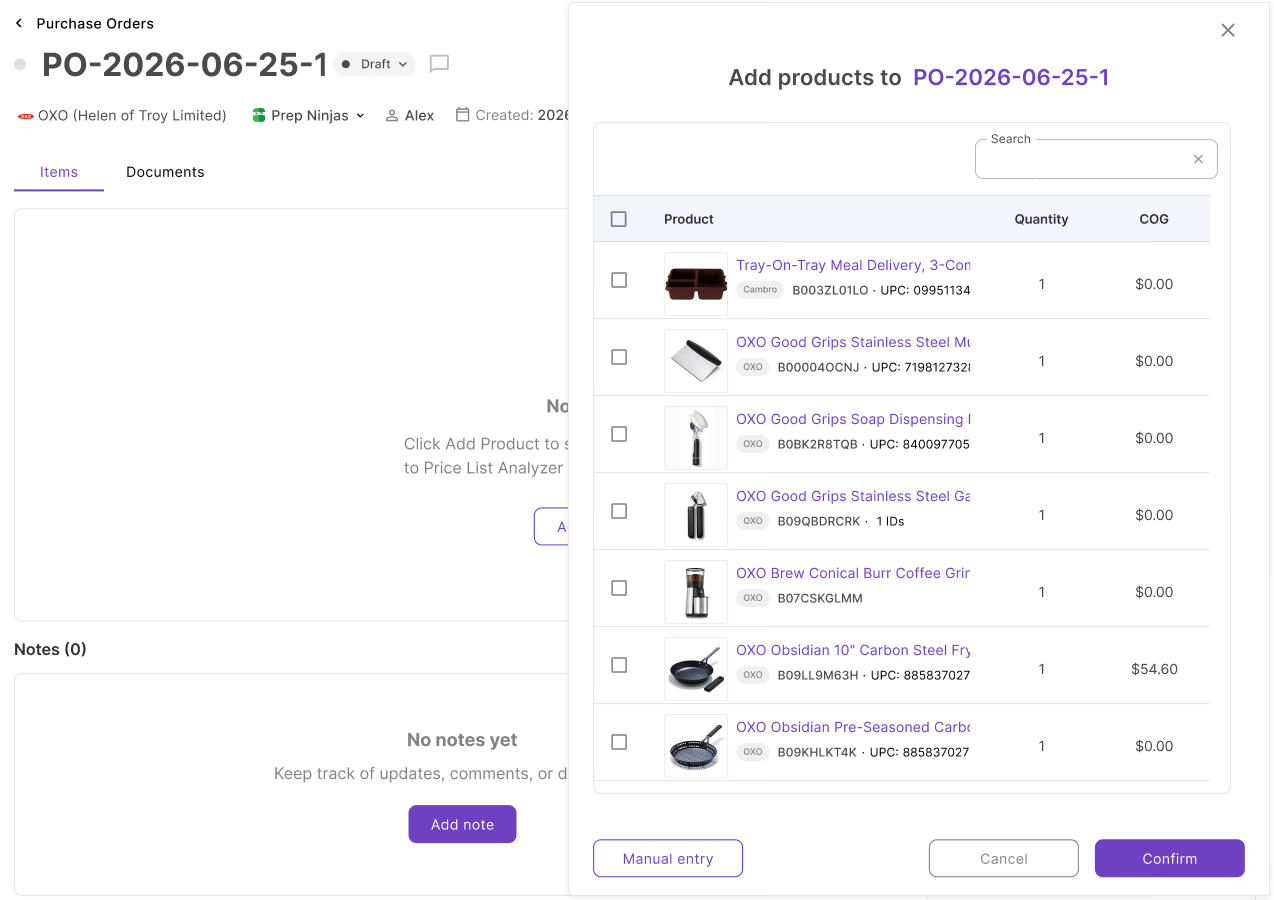
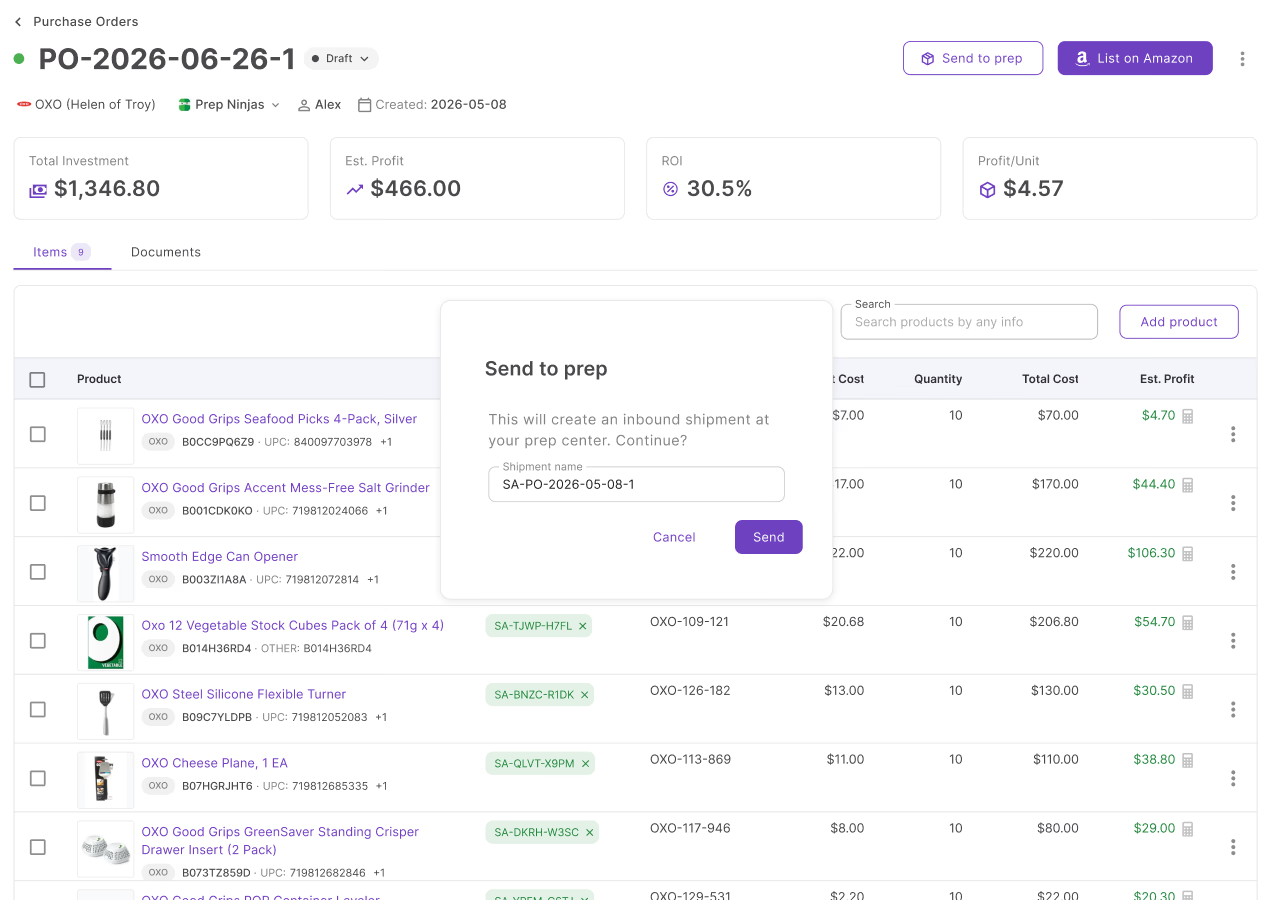
Sourcing is the hard part. Building the order shouldn't be
Manual re-entry, invoice reconciliation by hand, and no profit visibility until stock arrives. Seller Assistant removes all three.
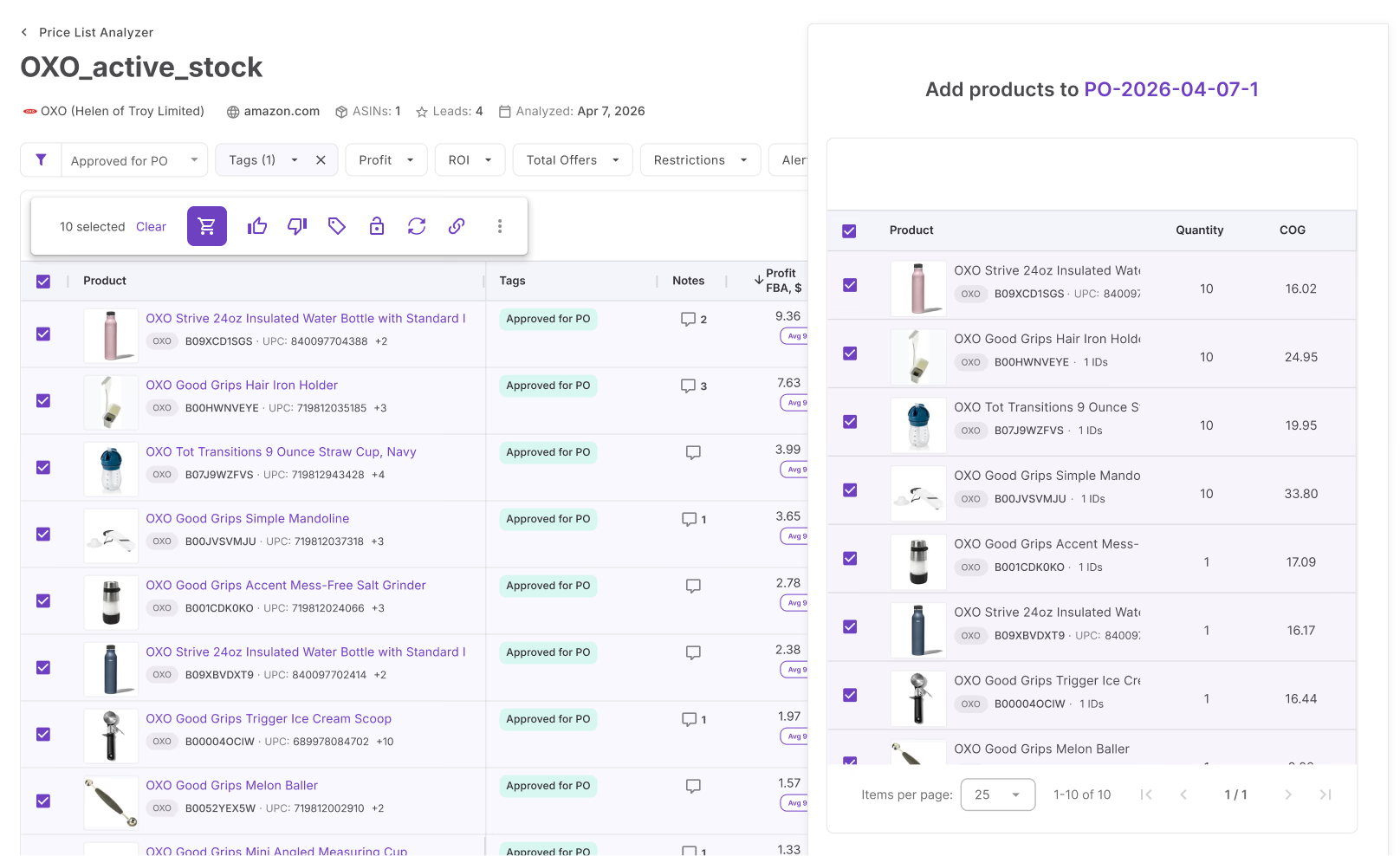
Turn sourcing decisions into purchase orders
Send products from Price List Analyzer into a purchase order in two clicks, with cost and quantity already filled in.
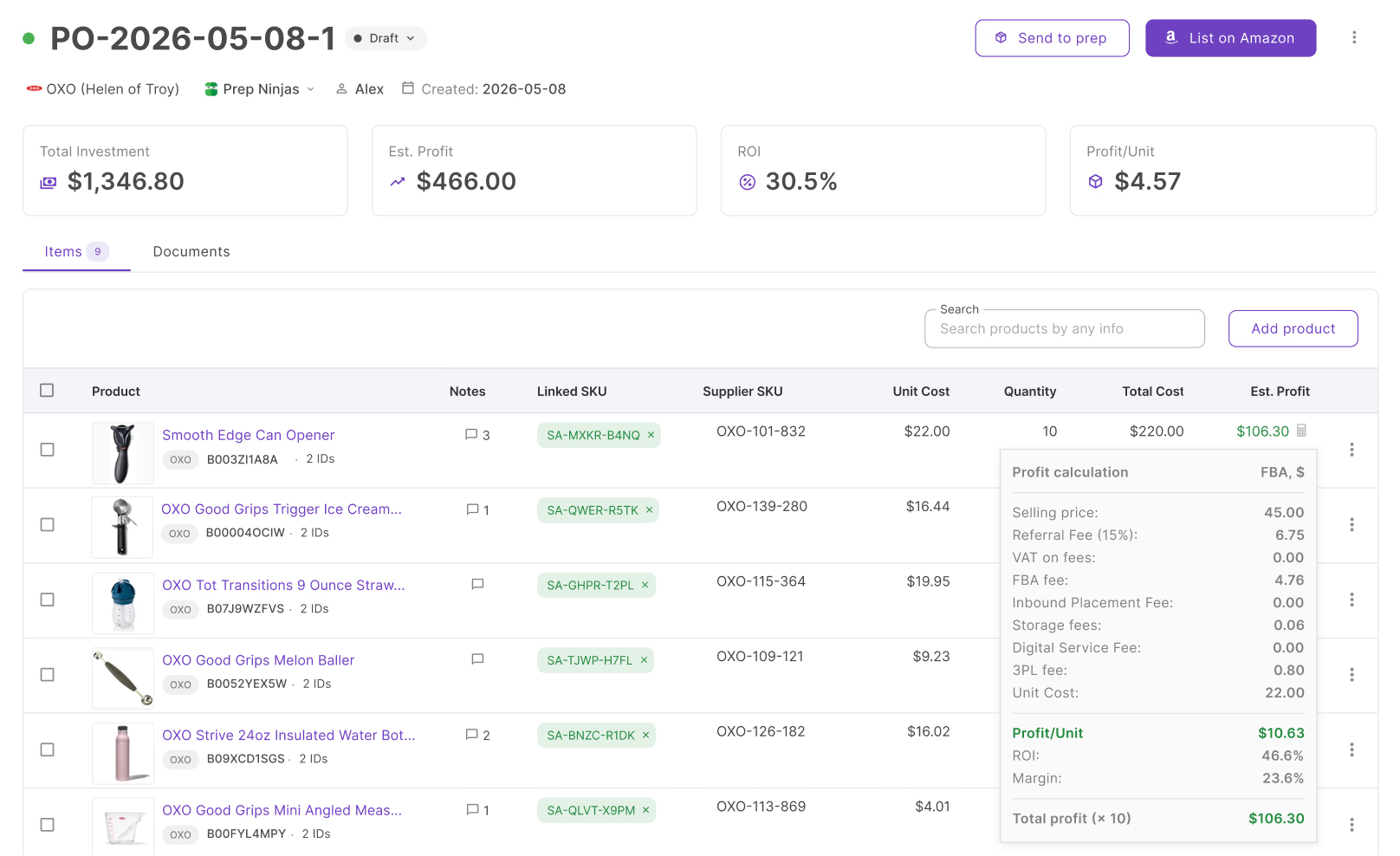
Know your profit before you order
Know whether an order is worth placing before you buy. Every line shows estimated revenue, profit, margin, and ROI using live Amazon prices and FBA fees, with totals rolled up across the entire order.
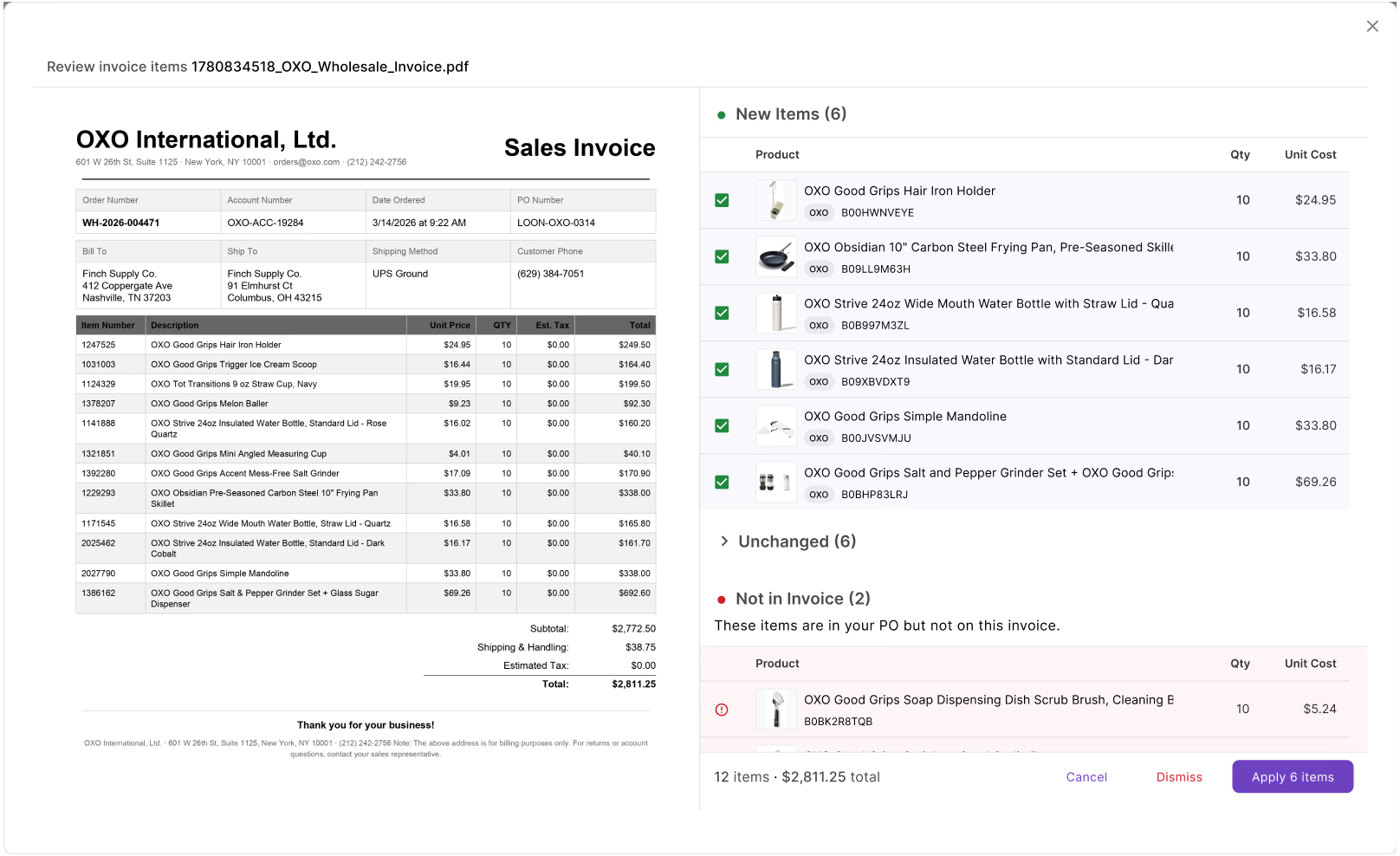
Keep orders aligned with supplier invoices
Supplier invoices rarely match the original PO. Upload the invoice to compare quantities, costs, and new items before applying changes to the order.
Everything you need to create profitable purchase orders
Supplier details, profitability, SKU suggestions, prep review, and receipt sync in one place.
Supplier association
Saved supplier info fills in address, warehouse, and payment terms on every new PO
Ship-to assignment
Switch the assigned warehouse or prep center from the PO header in one click
Profitability
Revenue, profit, margin, and ROI per line item, plus totals across the whole order
Live profit recalculation
Change a cost or quantity and profit recalculates across every product instantly
Cases and sellable units
Order by the unit or by the case, and see how many units you can sell.
Repeat orders
Copy any PO and reuse supplier, warehouse, and product data. Repeat orders in 2 clicks
Docs attachment
Attach PDFs, images, spreadsheets, and invoices directly to the PO. Files are classified automatically on upload
Notes
Add notes to the PO and view product-level notes from your database
SKU suggestions
A line without a SKU gets a suggestion you can accept in one click.
Send to prep review
Match each line to a prep item, and choose only when more than one item fits.
Receipt sync
See received, damaged, and missing units back on the purchase order.
Next actions
See what needs attention on the order, with a clear next step for each item.
Purchase Orders sits between sourcing and inventory
These tools feed products into the order, suggest SKUs, and keep prep receipts on the same PO.
Select products from your shortlist and push them to a new PO. SKU and cost carry through automatically.
Link a supplier so the ship-to address fills in and MOV and free shipping thresholds track automatically.
Assign a prep center, review every line in Send to prep, and track received, damaged, and missing units on the PO.
Open Lister from the PO with the new SKUs, the PO marketplace, and your listing defaults already filled in.
Purchasing doesn't start with the order
Connect sourcing decisions, purchasing, and inventory in one workflow.
Check selling eligibility on PO items before committing to the order.
AnalyzeSource products into your pipeline and push them into purchase orders.
SourceGet a SKU suggested for every PO line, reusing existing ones.
ListTrack inbound shipments after your prep dispatches inventory to Amazon.
ListHow-tos and guides
How to Use Seller Assistant’s Purchase Orders Module
Manage Amazon supplier orders easily. Learn how to create, track, and export purchase orders with Seller Assistant’s Purchase Orders Module.
Check If Your Purchase Order Is Still Profitable, with AI
Check Amazon purchase order profitability with AI. Review total investment, estimated profit, ROI, and order performance using Seller Assistant MCP.
Track Every Amazon Purchase Order with an AI Assistant
Track Amazon purchase orders with AI. Find POs, check order status, review supplier history, and access purchasing details faster with Seller Assistant MCP.
Keep Purchase Orders Updated without Busywork, Using AI
Keep Amazon purchase orders current with AI. Use Seller Assistant MCP to find existing POs, update costs and quantities, add products, and review changes through chat.
Build a Purchase Order in Seconds with an AI Chat
Create Amazon purchase orders fast with AI. Use Seller Assistant MCP to build, edit, reorder, and manage supplier POs through ChatGPT or Claude.
From Price List to Purchase Order with AI in One Chat
Price list to purchase order automation with AI helps Amazon sellers analyze supplier catalogs, select leads, create POs, and review orders.
Frequently Asked Questions
Visit Help CenterHow do I create a purchase order in Seller Assistant?
Can I add products from Price List Analyzer directly into a PO?
How do Cases to Order and sellable units work on a purchase order?
How does invoice import work?
How does PO profitability work?
Can I send a purchase order to a prep center from Seller Assistant?
What does Next actions show on a purchase order?
What statuses can a purchase order have?
How do SKUs get onto a purchase order?
Can my team access and manage purchase orders?
Ready to turn products into profitable purchase orders?
Check profit before you buy, send the order to prep with a line review, and track received, damaged, and missing units from the same PO.
Get StartedNot sure which plan fits your sourcing workflow? Chat with our team — we're happy to help.