Send purchase orders to prep with a review of every line
Connect a prep center, send purchase orders from Seller Assistant, and see what arrived.
Get StartedFrom warehouse setup to prep dispatch in 3 steps
No portal switching. The entire prep workflow happens where the order was created.
Managing prep was always the part that broke the workflow
Most sellers still re-enter every SKU in the prep center portal. Send to prep keeps that review in Seller Assistant.
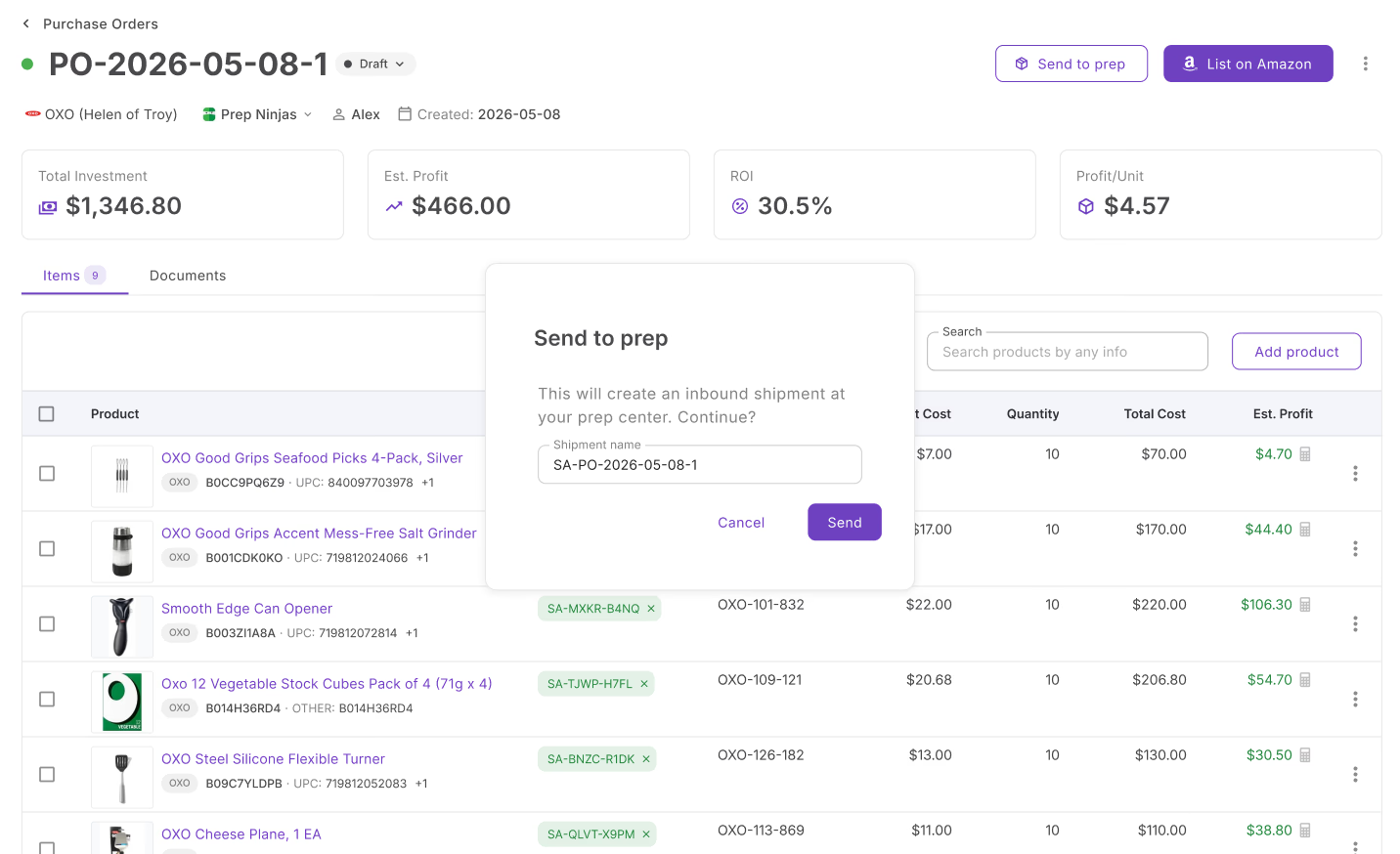
No more copying PO data into a separate portal
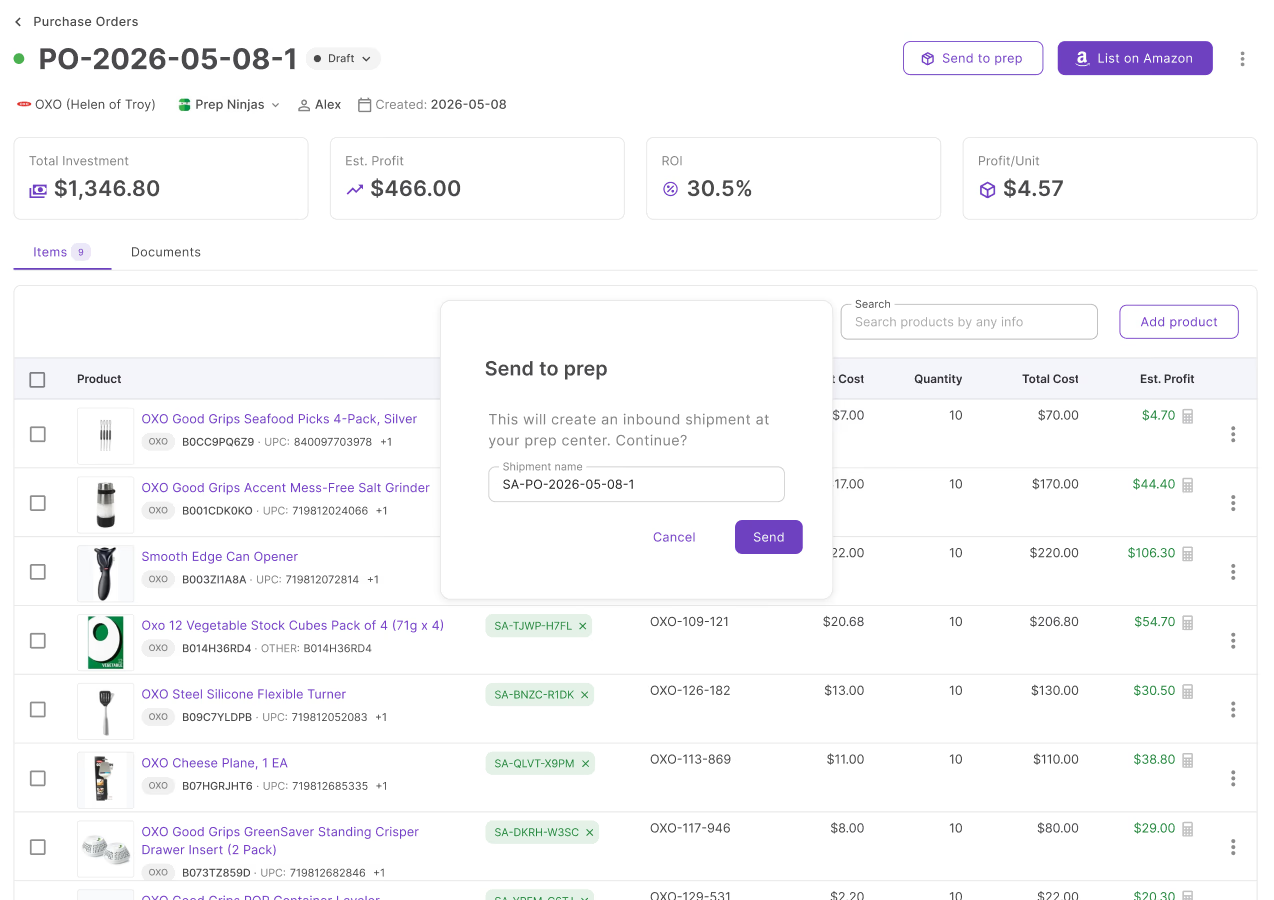
Send a purchase order to prep from Seller Assistant, and review every line before it goes.
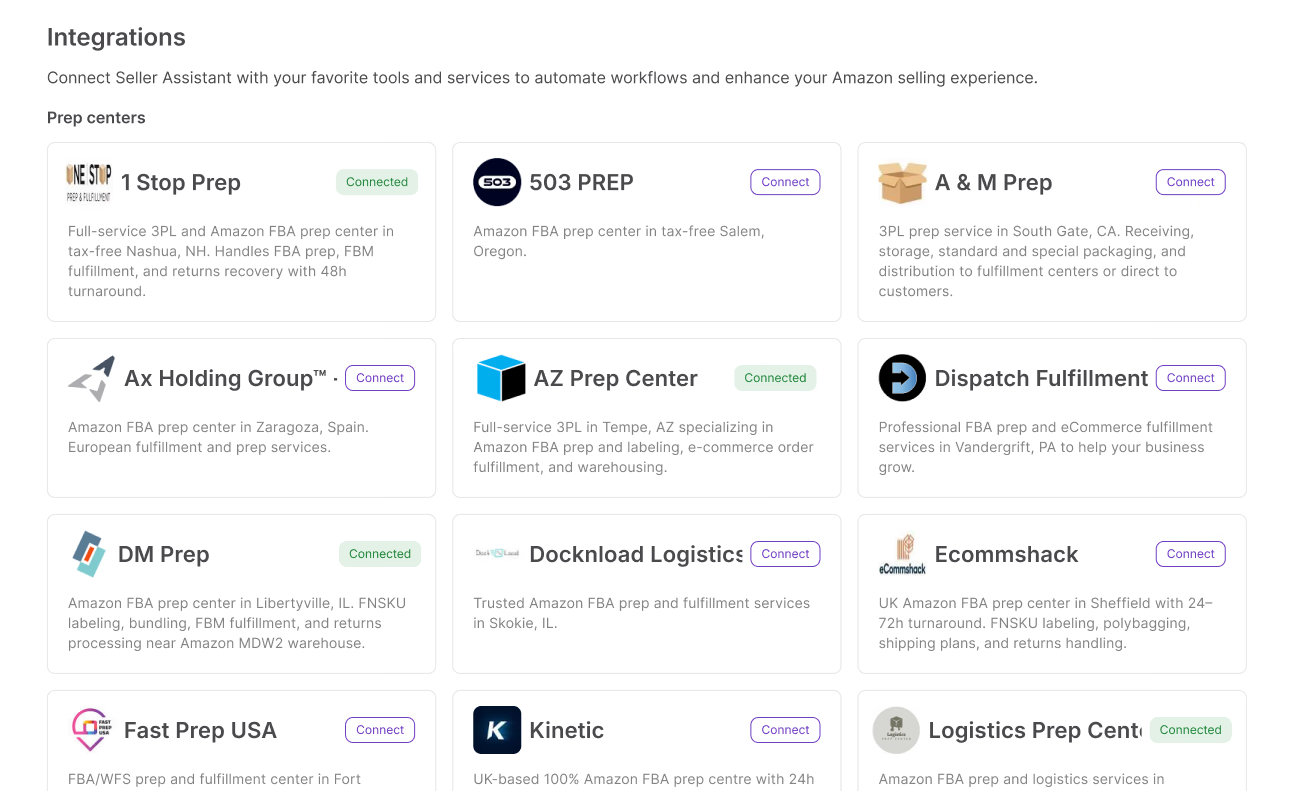
Purpose-built prep center integrations
Choose from a growing directory of prep centers with purpose-built integrations. No automation tools, no custom workarounds — connect directly from Seller Assistant. Don't see your prep center? Request it and we'll add it.
One source of truth for all your locations
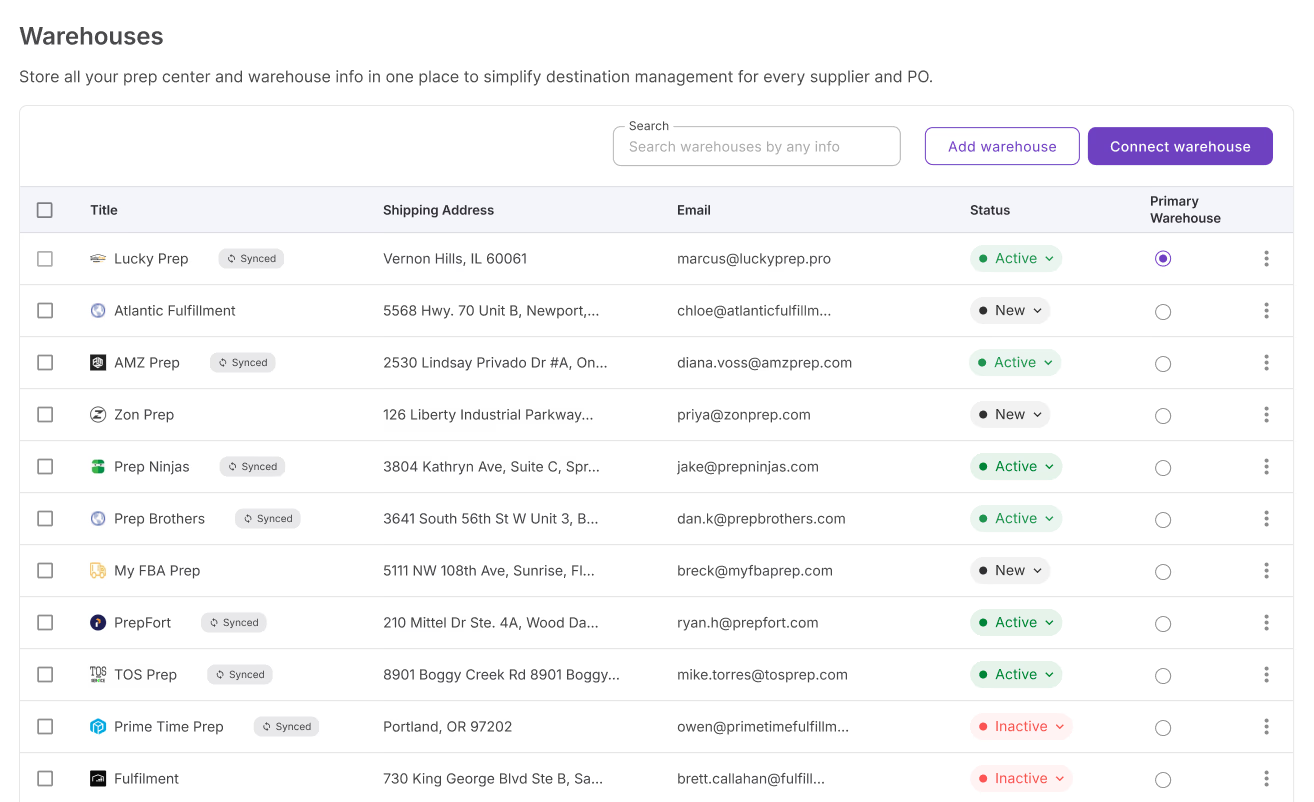
When you're running dozens of POs across multiple suppliers and prep centers, manual routing breaks down. All warehouses and prep centers in one shared database — assign once per supplier and every PO routes correctly, automatically, regardless of volume.
Everything warehouses database handles
From manual entry to a reviewed send, shared SKUs, and receipt sync.
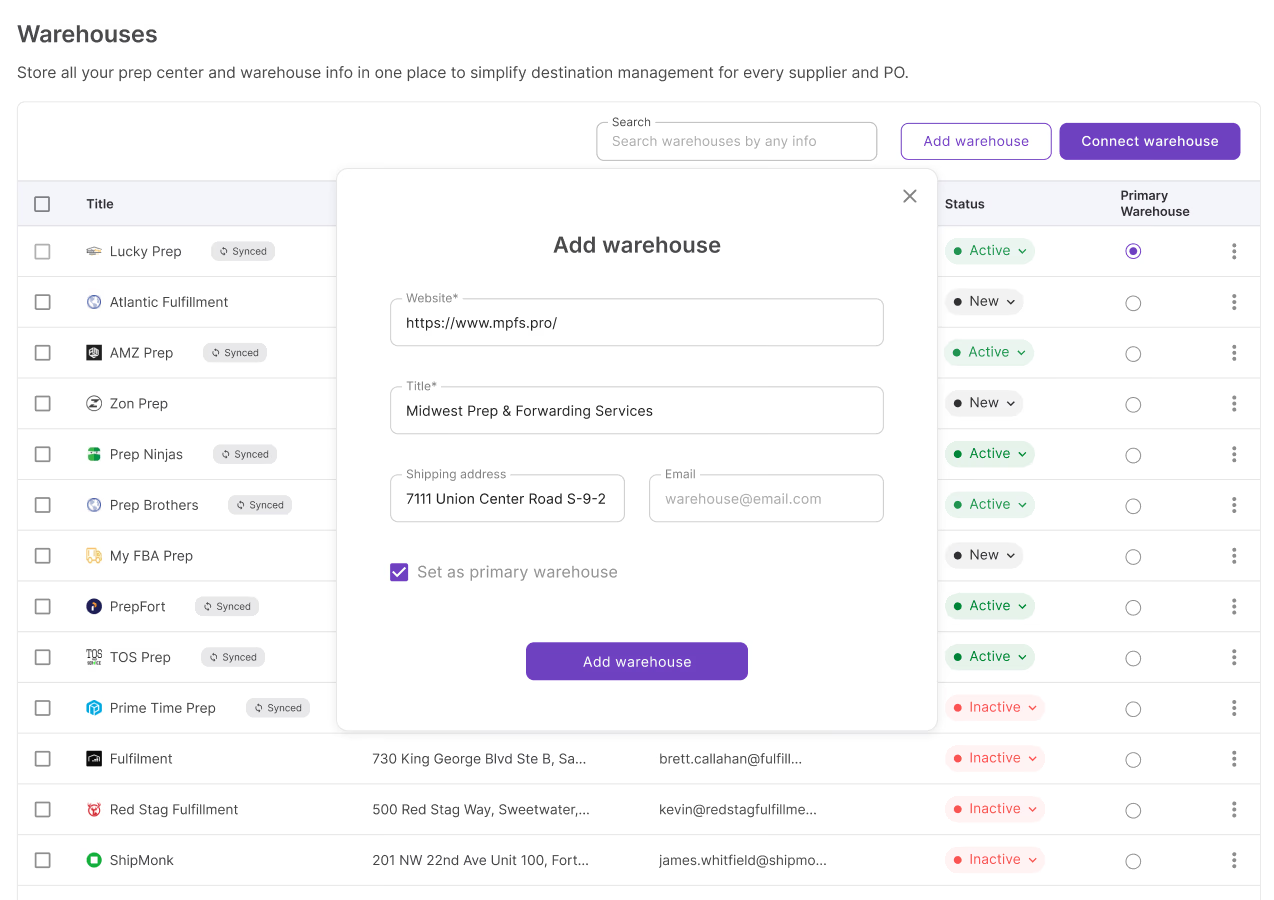
Manual warehouse entry
Add any warehouse or prep center with name, address, and contact details
Prep center sync
Integrated warehouses sync automatically into your database
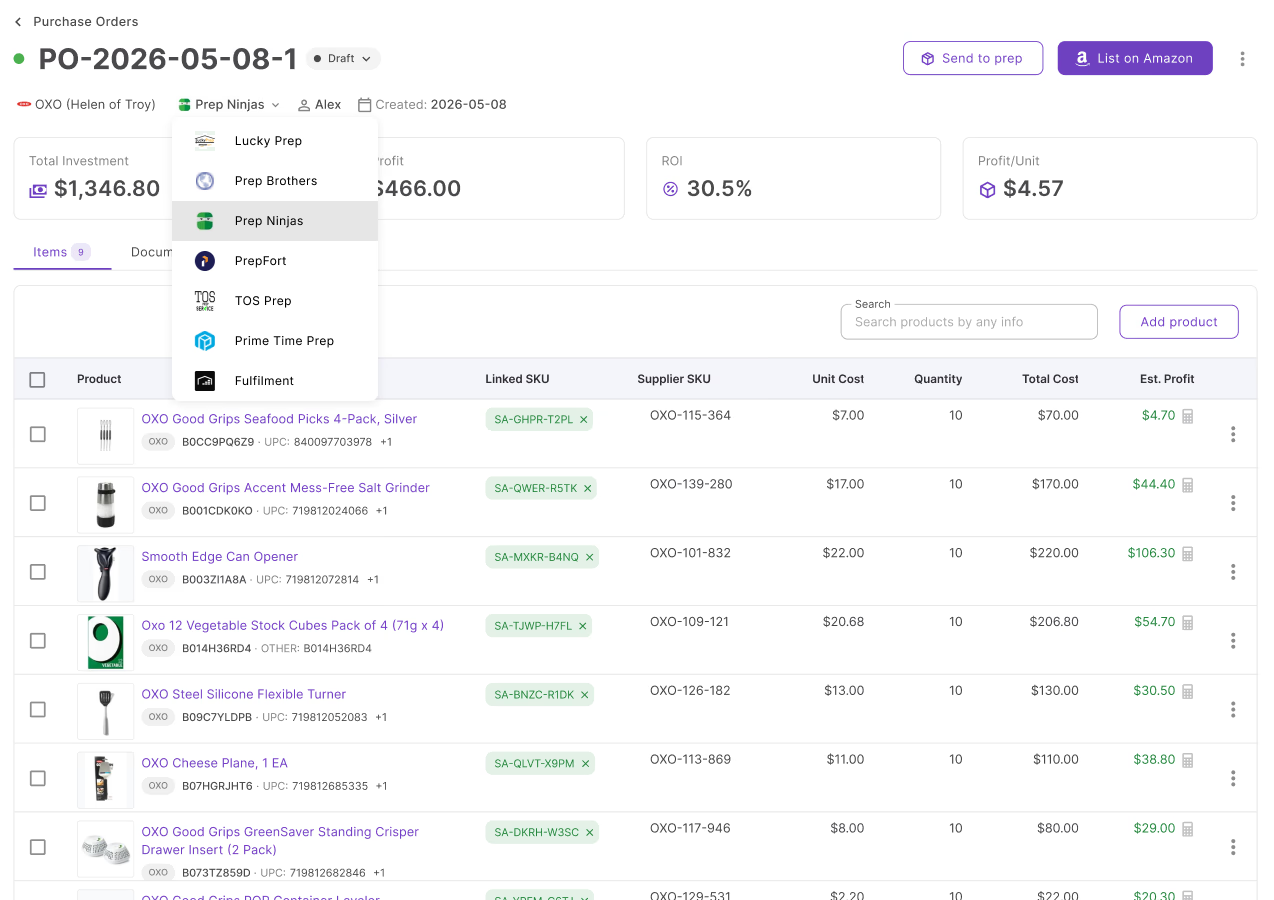
Supplier association
Link a warehouse to a supplier so the correct ship-to is applied automatically on every PO
Select ship-to from PO
Change the assigned warehouse directly from the PO header
Send to prep
Review each line, match the prep item, and send the order.
Receipt sync
See received, damaged, and missing units back on the purchase order.
Shipment unlinking
Unlink a shipment and send the order to another prep center.
Team access
Warehouses are shared across the team with full edit and delete permissions
Warehouses database connects the order to the prep center. These tools close the loop
The purchase order, the prep center, and the Amazon listing stay on the same SKU.
Review every line in Send to prep, move the PO to Ordered, and resolve receiving gaps from the order
SourceLink a warehouse to a supplier so the ship-to address is set automatically on every purchase order
SourceTrack inbound shipments after your prep center dispatches inventory to Amazon
ListList new SKUs from the PO, with the marketplace and listing defaults already set
The pipeline starts long before the warehouse
Build your order list before anything reaches a purchase order.
Turn a supplier catalog into a shortlist of profitable products ready to order.
AnalyzeSource products into your pipeline and push them into purchase orders.
SourceTrack landed costs per SKU with prep and inbound fees factored in automatically.
ListResearch brand performance before committing to a supplier.
AnalyzeHow-tos and guides
How Prep Center Integration Works in Seller Assistant
How Prep Center Integration Works in Seller Assistant: Connect prep centers, sync warehouses, send Purchase Orders, and streamline Amazon fulfillment.
Seller Assistant Prep Center Integration: Full Guide
Seller Assistant Prep Center Integration: Learn how to connect prep centers, sync warehouses, streamline purchase orders, and simplify Amazon fulfillment
How to Use Seller Assistant’s Warehouses Database
Learn how to manage warehouses, prep centers, and fulfillment locations in one place with built-in Prep Center Integration.
Seller Assistant Warehouses Database: Full Guide
Seller Assistant Warehouses Database: Learn how to manage warehouses, prep centers, and fulfillment locations to streamline your Amazon sourcing workflow.
Suppliers and Warehouses: Connecting Your Workflow
Suppliers and Warehouses: Learn how to connect supplier profiles with warehouses in Seller Assistant to streamline purchasing and improve fulfillment routing.
Frequently Asked Questions
Visit Help CenterHow do I send a purchase order to a prep center?
How do I connect my prep center to Seller Assistant?
What happens if I unlink a shipment from a purchase order?
What prep centers does Seller Assistant integrate with?
Can I manage multiple warehouses and prep centers in one place?
How do I track inbound shipments sent to a prep center?
Can I assign different prep centers to different purchase orders?
Ready to connect your orders to prep?
Centralize your warehouses, sync your prep center, and send purchase orders to prep without leaving Seller Assistant.
Get StartedNot sure which plan fits your sourcing workflow? Chat with our team — we're happy to help.