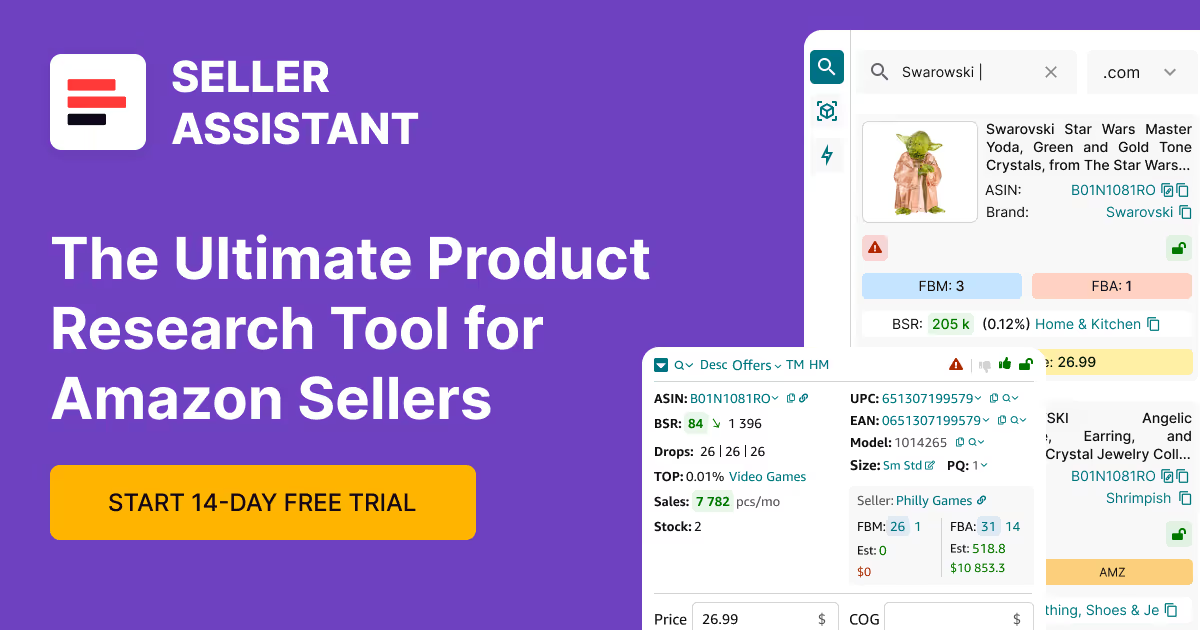



Sourcing products for Amazon sounds simple until ASIN–UPC mismatches start costing you money. Supplier lists often contain incorrect or inconsistent identifiers, and relying on automatic matching can link you to the wrong product, misleading profitability data, or even listing risks.
When you analyze large catalogs in tools like Seller Assistant’s Price List Analyzer, these errors don’t stay small – they scale. To source accurately, you need more than speed. You need control over how products are matched and validated.
In this post, you’ll learn how to fine-tune ASIN–UPC matching to avoid costly mistakes, improve data accuracy, and build a sourcing system that gets smarter with every supplier file.
Note. Seller Assistant is an end-to-end Amazon workflow management platform that integrates 15+ wholesale-focused solutions into one connected system. It combines sourcing workflow automation, bulk research and intelligence tools, and integrated Chrome extensions – giving you everything you need to streamline finding deals, managing suppliers, and creating purchase orders.

The platform aggregates: workflow management tools – Product Database, Purchase Orders Module, Suppliers Database, Warehouses Database, FBA Shipments to organize, automate, and scale every step of your wholesale and arbitrage operations; bulk research & sourcing tools – Price List Analyzer, Bulk Restriction Checker, AI Supplier Finder, Brand Analyzer, Seller Spy to evaluate supplier price lists, verify selling eligibility and restrictions, open new brands, and discover winning product ideas from competitors to expand your product catalog; Chrome extensions – Seller Assistant Browser Extension, IP-Alert Extension, and built-in VPN by Seller Assistant to deep-research products, check IP claims and compliance, and access geoblocked supplier sites directly within your browser; and integrations & team access features – seamless API connectivity and integrations with Zapier, Airtable, and Make, plus Virtual Assistant Accounts for secure, scalable team collaboration.
With Seller Assistant, every step of your Amazon wholesale and arbitrage workflow is automated and connected.
The Hidden Cost of Bad ASIN–UPC Matches
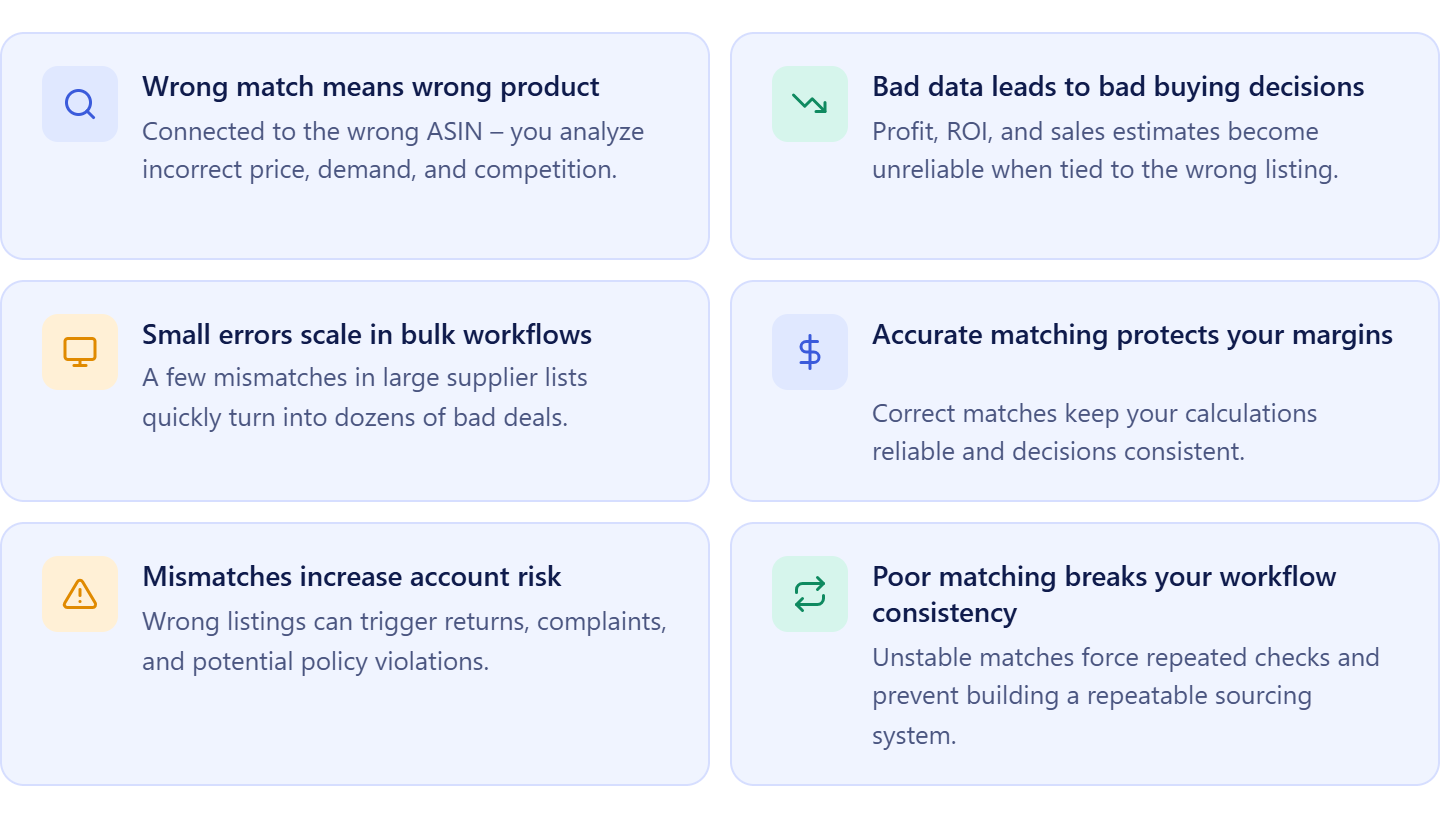
ASIN–UPC matching seems like a small technical step, but it directly impacts every sourcing decision you make. When identifiers are incorrect, your analysis is built on the wrong data – and that quickly turns into costly mistakes. For Amazon resellers working with bulk supplier lists, this is not an edge case. It’s a daily risk that scales with every file you process.
Wrong match means wrong product
A mismatched UPC can link your supplier item to a completely different ASIN. You end up analyzing the wrong listing – incorrect price, demand, and competition. What looks profitable on paper may have nothing to do with the actual product you’re sourcing.
Bad data leads to bad buying decisions
When the match is wrong, every metric becomes unreliable. Profit, ROI, and sales estimates lose meaning because they are tied to the wrong product. This often results in buying items that don’t perform or can’t compete in the Buy Box.
Small errors scale in bulk workflows
In tools like Seller Assistant’s Product Database and Price List Analyzer, you’re working with hundreds or thousands of SKUs at once. Even a small percentage of mismatches can affect a large number of products. What seems like a minor issue quickly turns into repeated losses across multiple закупки.
Accurate matching protects your margins
Correct ASIN–UPC matching ensures that each product is evaluated against the right listing. It keeps your calculations reliable, helps you avoid restricted or risky products, and makes your sourcing decisions consistent. Without this control, speed becomes a liability – you simply make mistakes faster.
Mismatches increase account risk
Incorrect matches don’t just affect profit – they can create compliance issues. Listing the wrong product under an ASIN can trigger customer complaints, returns, or even policy violations. Over time, this can impact your account health and lead to listing restrictions or suspensions.
Poor matching breaks your workflow consistency
When matches are unreliable, your entire sourcing process becomes inconsistent. The same product may be evaluated differently across sessions, team members, or supplier files. Without stable matching, you can’t build a repeatable system – you’re forced to recheck and revalidate the same data again and again.
What Is the Match Flag System in Seller Assistant?
The match flag system in Seller Assistant is a structured way to control how product identifiers (UPC, EAN, GTIN) are linked to Amazon ASINs across your sourcing workflow. It ensures that each product is matched to the correct listing and that these decisions are stored and reused over time.
Instead of relying only on automatic matching, the system lets you define which identifier–ASIN pairs are valid and which should be ignored. This turns matching from a one-time check into a controlled, repeatable process.
| Element | What it means | What it does | Where it works | What you can do |
|---|---|---|---|---|
| Match flag system | A control layer for ASIN–identifier relationships | Ensures products are matched to correct Amazon listings | Across Seller Assistant workflow | Validate, block, and manage matching logic over time |
| ASIN–identifier pair | Link between a product identifier (UPC, EAN) and an ASIN | Defines how a product connects to Amazon | Product Database and Price List Analyzer | Review, edit, add, or remove connections |
| Always match | Confirmed correct match | Sets ASIN–UPC connection and saves it | Stored in Product Database | Confirm valid matches for future use |
| Never match | Rejected match | Blocks incorrect identifier–ASIN pair | Applied in Price List Analyzer | Exclude from analysis |
| Auto source | System-added identifier | Default for products entering Product Database | Product Database | Review and confirm or change if needed |
| Manual source | User-added identifier | Custom identifier added by seller | Product Database / supplier offers | Add missing identifiers or correct data |
| Product Database | Central storage for products and identifiers | Stores all matches and their status | Core workflow layer | Add identifiers, change match types, manage product data |
| Price List Analyzer | Bulk analysis tool | Applies matching during supplier file analysis | Sourcing stage | Review matches, confirm or block them |
| Matching Rules in Price List Analyzer | Control panel for all matches | Displays all ASIN–identifier pairs with details (type, source, date, match type) | Inside Price List Analyzer | View, update, remove, or change match decisions |
Why accurate matching control is needed
Supplier data is rarely clean. UPCs can be incorrect, reused, or mapped to multiple products. At the same time, Amazon’s catalog may contain overlapping or inconsistent identifier relationships.
Without control over matching:
- products can be linked to the wrong ASIN
- profitability and demand data become unreliable
- incorrect decisions repeat across multiple supplier files
The match flag system solves this by allowing you to validate matches once and reuse that decision across your workflow.
How the match flag system is organized
At its core, the system works with ASIN–identifier pairs. Each pair represents a connection between a supplier product and an Amazon listing.
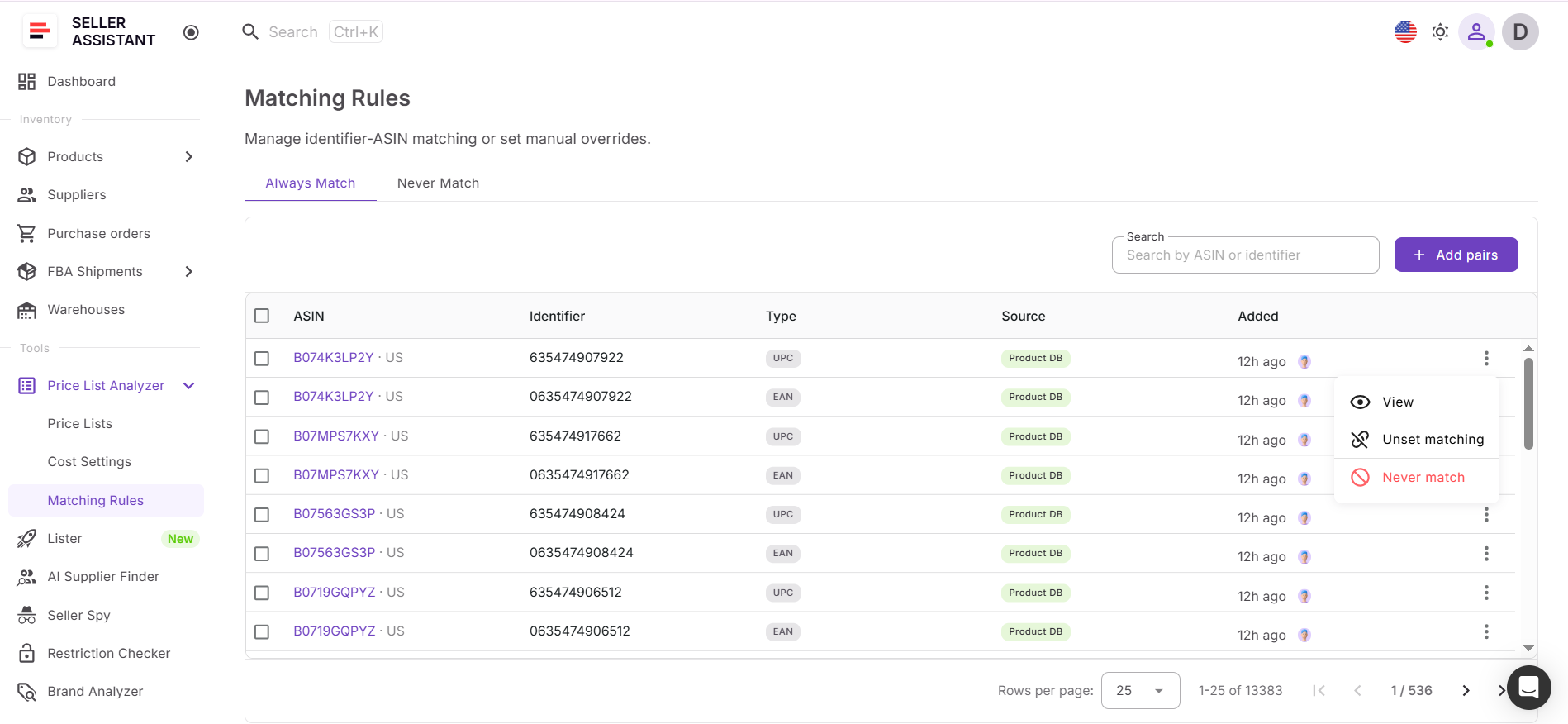
For every pair, you can define its match type:
- Always match – the connection is correct and should be used
- Never match – the connection is incorrect and should be ignored
You can:
- confirm or block matches
- add new identifier–ASIN pairs
- change match types at any time
- remove or reset existing connections
This structure allows you to build a controlled set of matching rules that the system follows automatically.
What Seller Assistant tools the system involves
The match flag system works across key Seller Assistant tools:
- Product Database – stores all identifiers and their match status (Always match by default, with Product DB or Manual source)
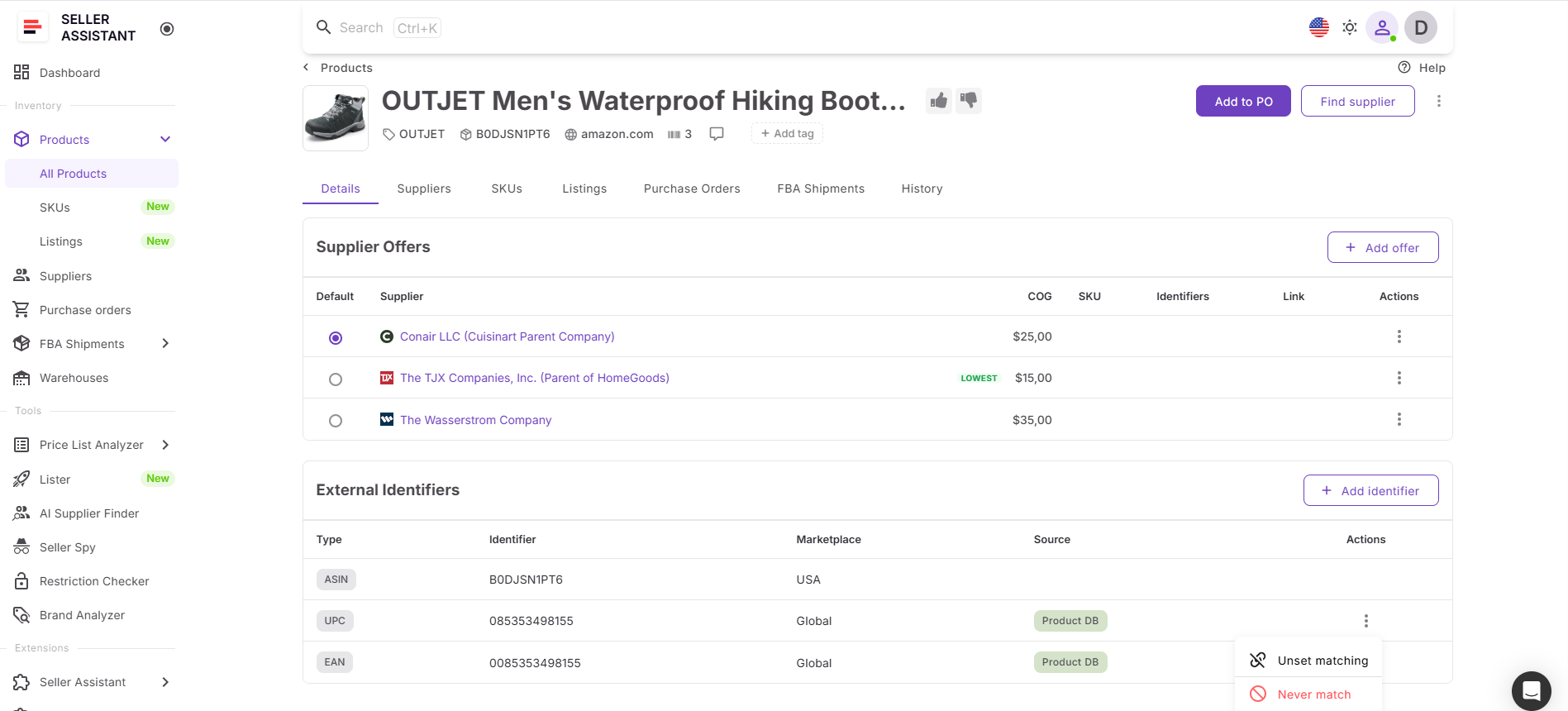
- Price List Analyzer – applies these matches during bulk analysis and allows you to review and update them
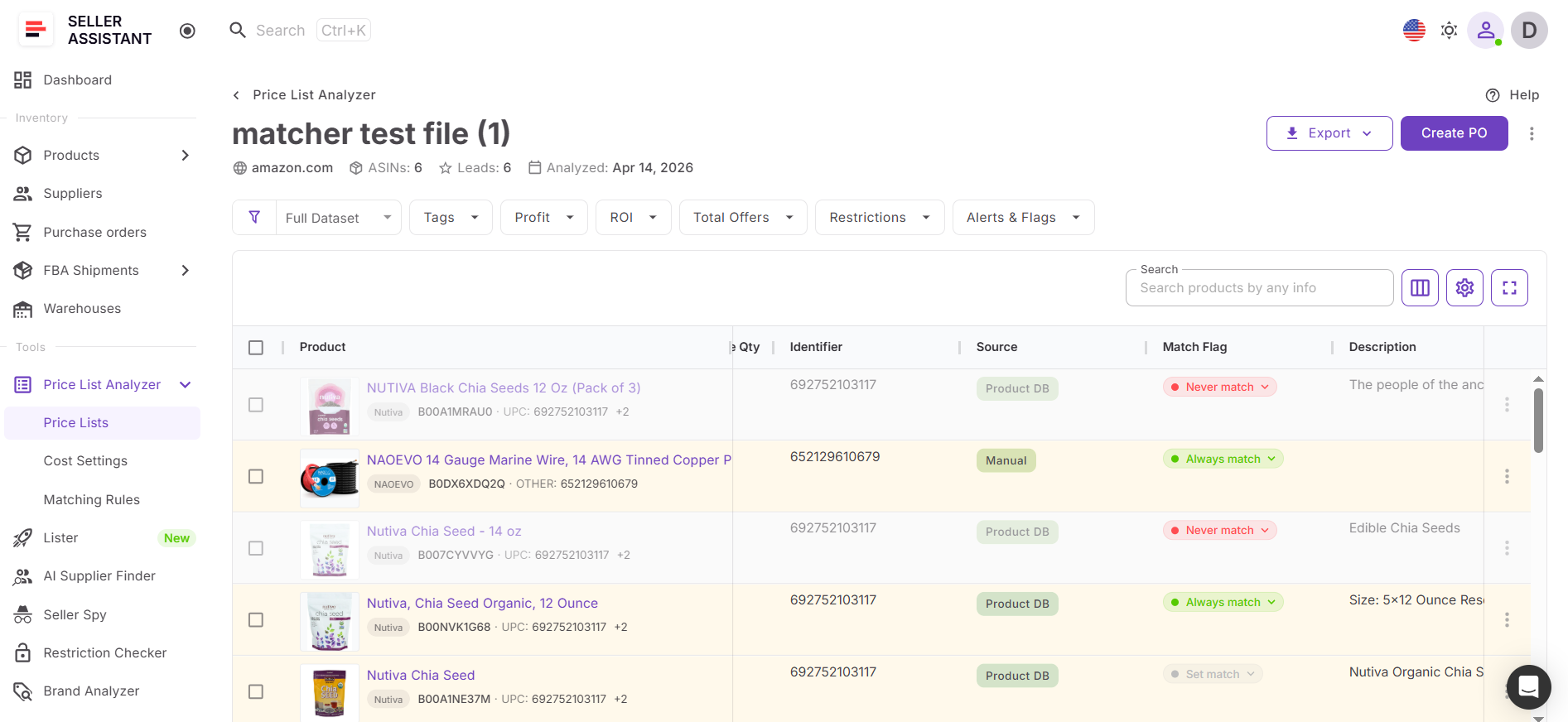
- Matching Rules tool (inside PLA) – displays all ASIN–identifier pairs with details such as type, source, date added, and match type, and allows full control over them.
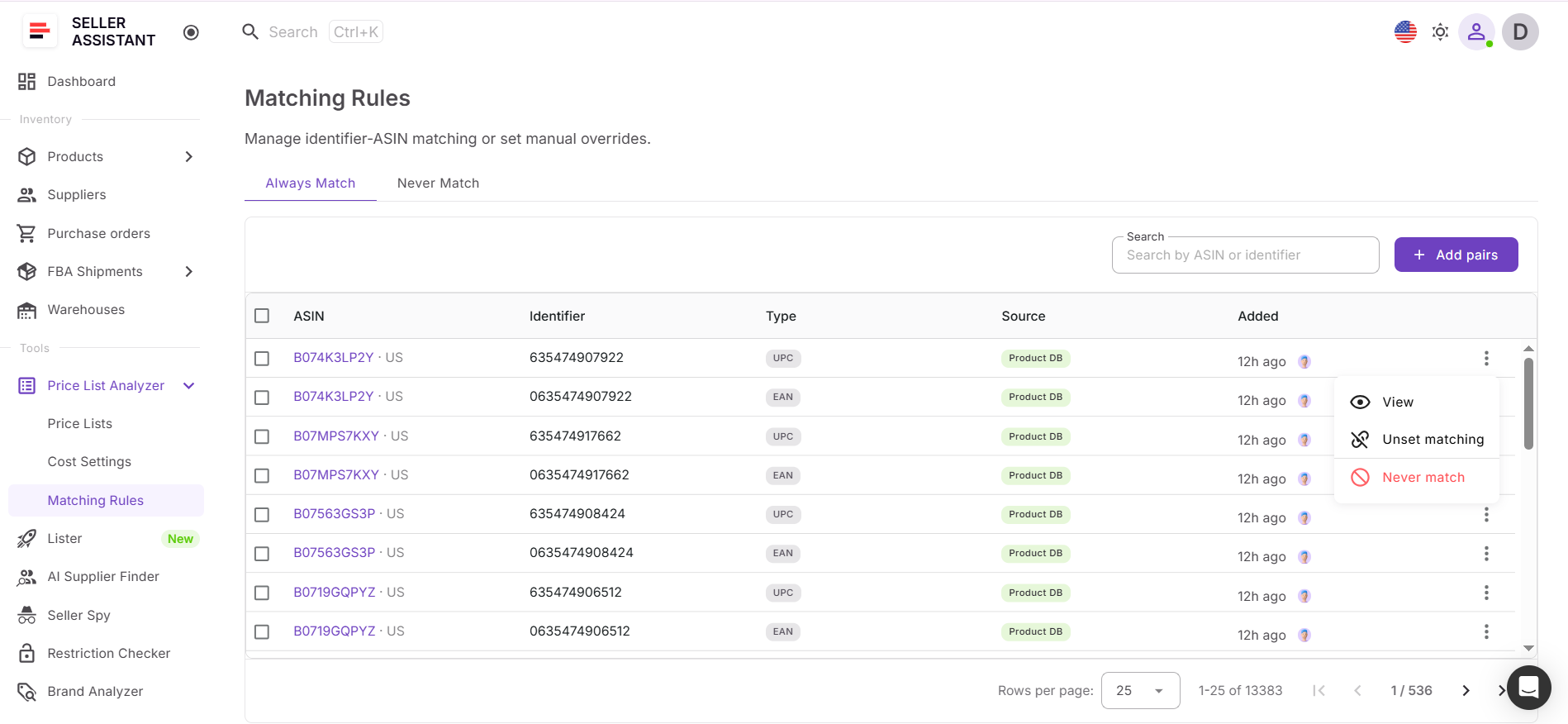
Together, these tools ensure that matching decisions are not isolated but consistently applied across your sourcing workflow.
What You Can Do With the Match Flag System
The match flag system is not just about fixing mismatches. It gives you control over how product data behaves across your entire sourcing workflow. Instead of checking identifiers every time, you build a system that remembers your decisions and applies them automatically.
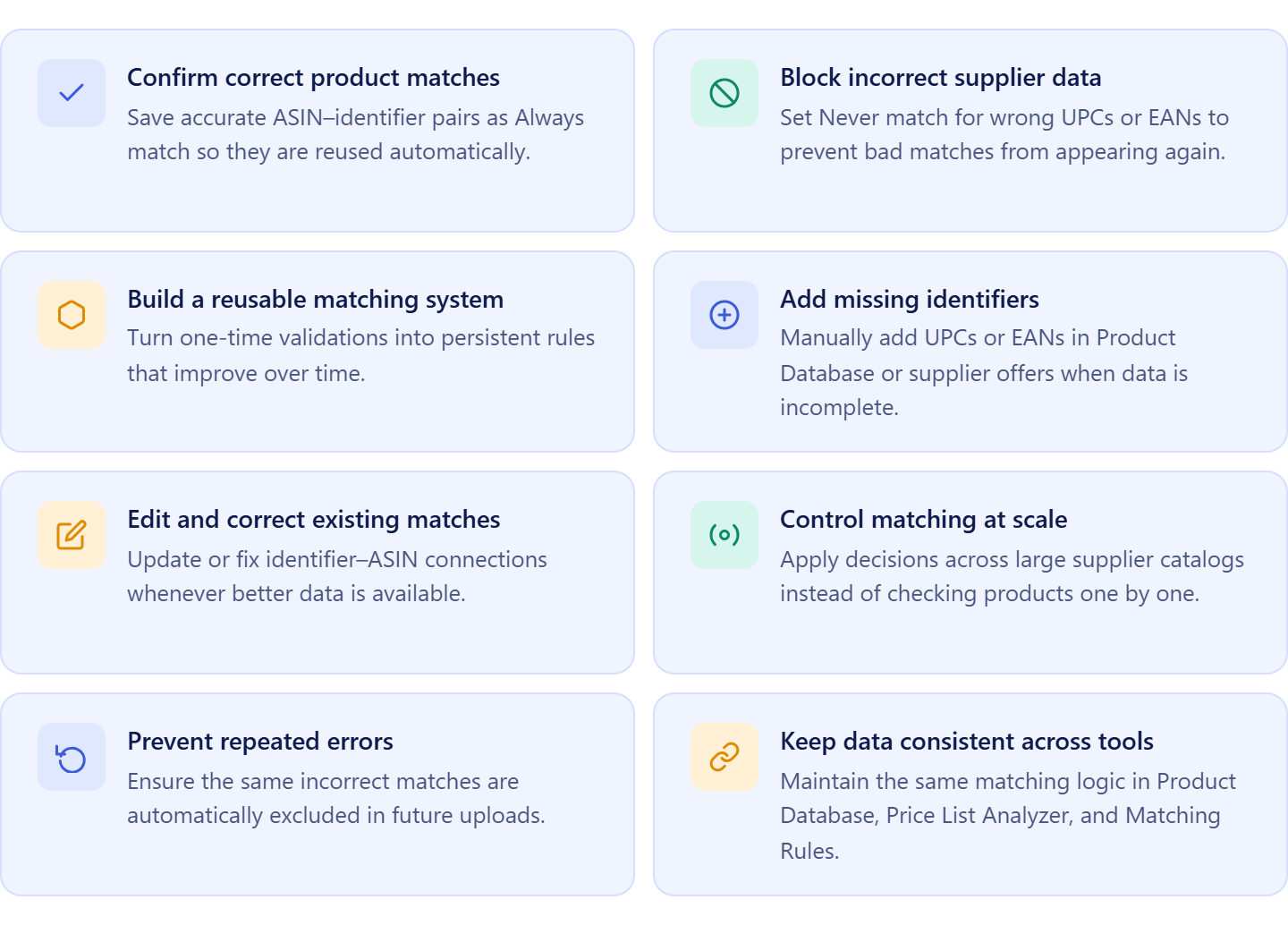
Confirm correct product matches
Lock accurate ASIN–identifier pairs as Always match so they are reused in future analyses without rechecking.
Block incorrect supplier data
Set Never match for wrong UPCs or EANs to prevent them from appearing in Price List Analyzer again.
Build a reusable matching system
Turn one-time decisions into long-term rules that improve accuracy with every supplier file you process.
Add missing identifiers
Manually add UPCs or EANs in Product Database or supplier offers when data is incomplete or missing.
Edit and correct existing matches
Update identifier–ASIN connections at any time if you find errors or better data.
Control matching at scale
Apply decisions across hundreds or thousands of products instead of validating each match manually.
Prevent repeated errors
Stop the same incorrect matches from reappearing in future uploads by defining clear rules.
Keep your data consistent across tools
Ensure the same matching logic is applied in Product Database, Price List Analyzer, and Matching Rules.
How Match Flag System Works
When you analyze supplier products, each item comes with an identifier like a UPC or EAN. To evaluate it on Amazon, the system must connect that identifier to the correct ASIN.
The match flag system in Seller Assistant controls this connection. It allows you to confirm correct matches, block incorrect ones, and manage how these decisions are reused in future analysis. This ensures you always work with accurate product data when sourcing.
How ASIN–identifier connections are created
Every match starts with a connection between an ASIN and an identifier (UPC, EAN, etc.).
This connection is created when a product appears in Product Database from a supplier file
from Price List Analyzer, added manually from Keepa or other source.
By default:
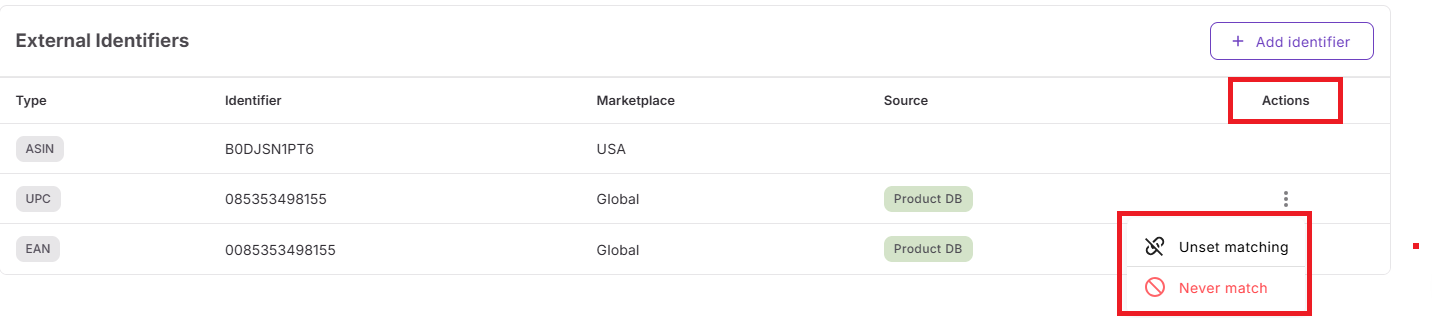
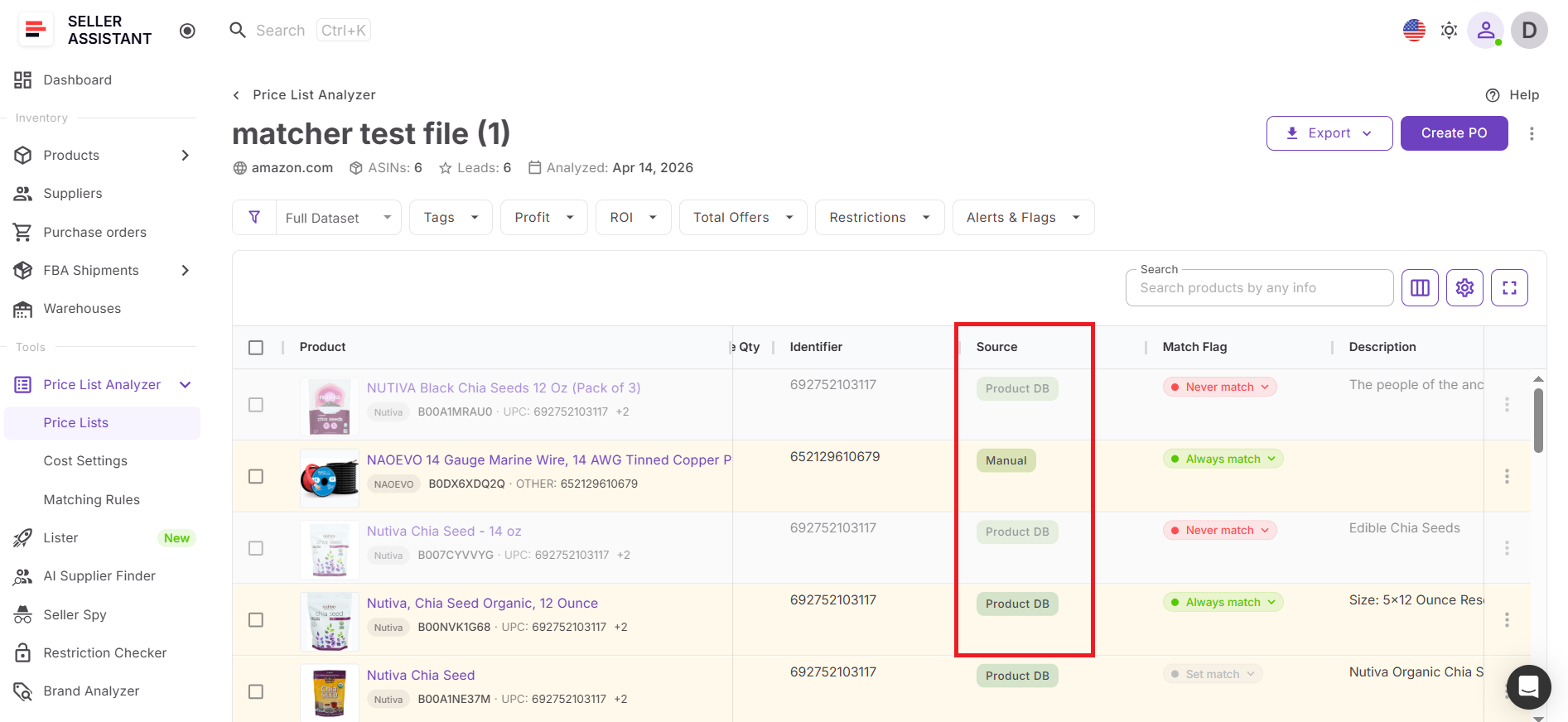
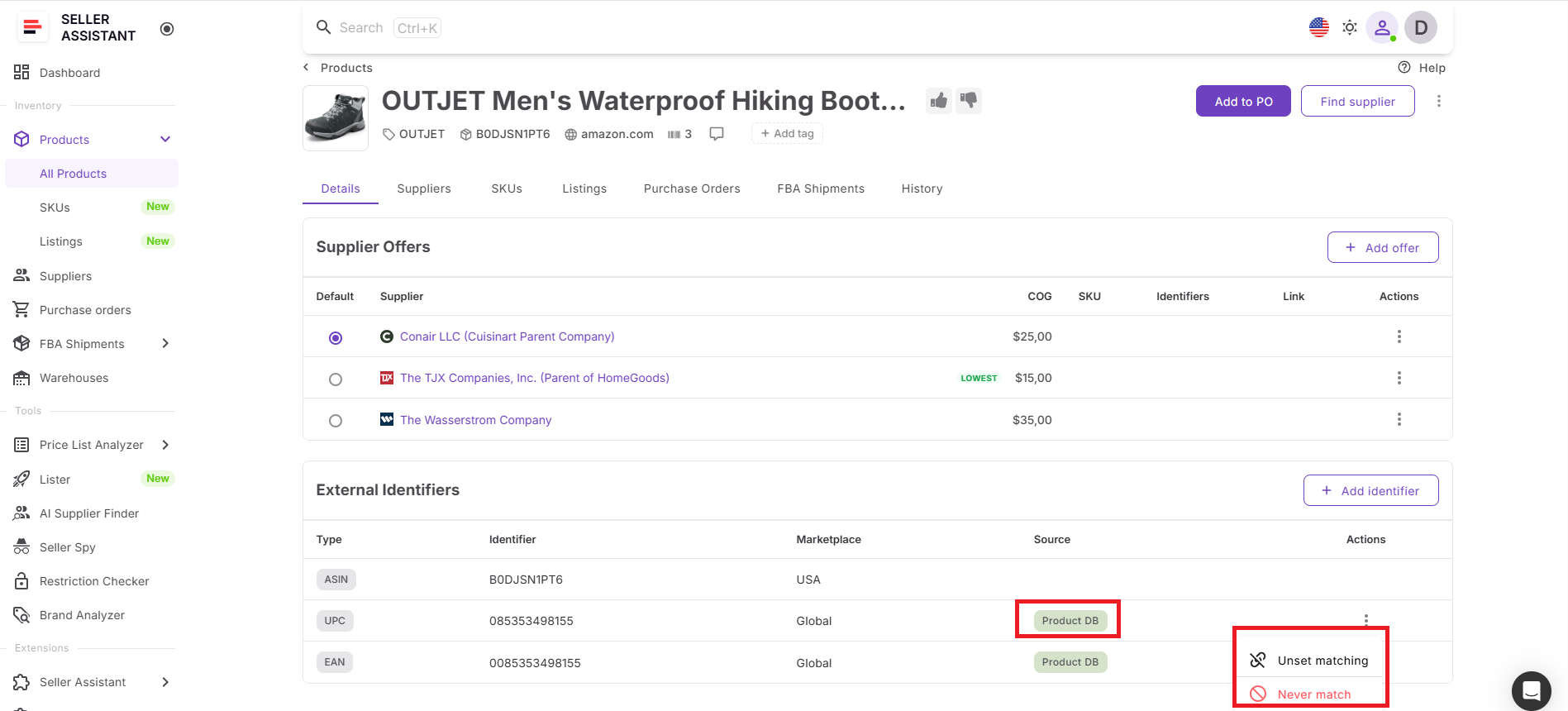
- All identifiers in Product Database are set to Always match
- Their source is marked as Product DB.
If you add an identifier manually, the source becomes Manual.
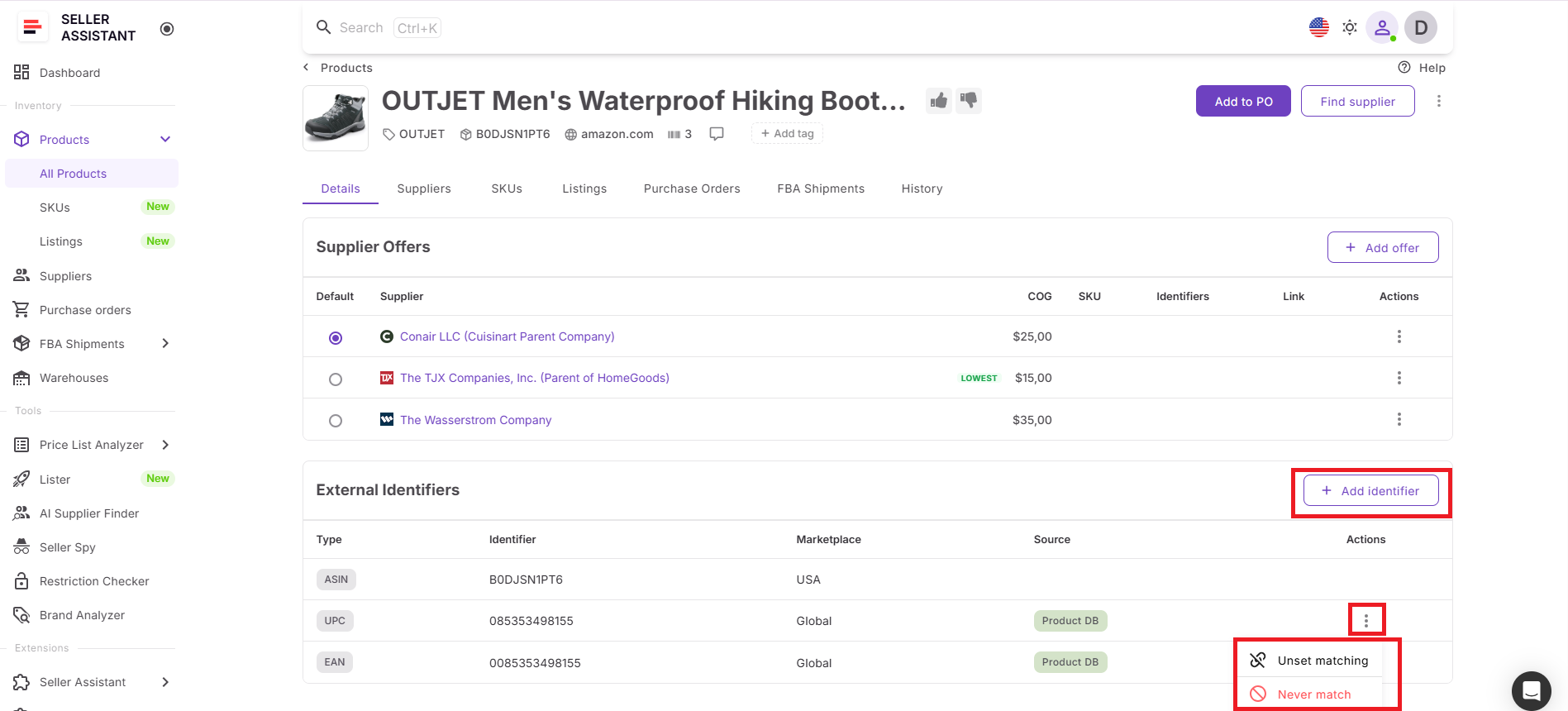
You can also:
- add new identifiers that didn’t exist before
- edit existing ones
- change their match status at any time.
How matching works during analysis
When you run analysis in Price List Analyzer, the system uses these existing connections.
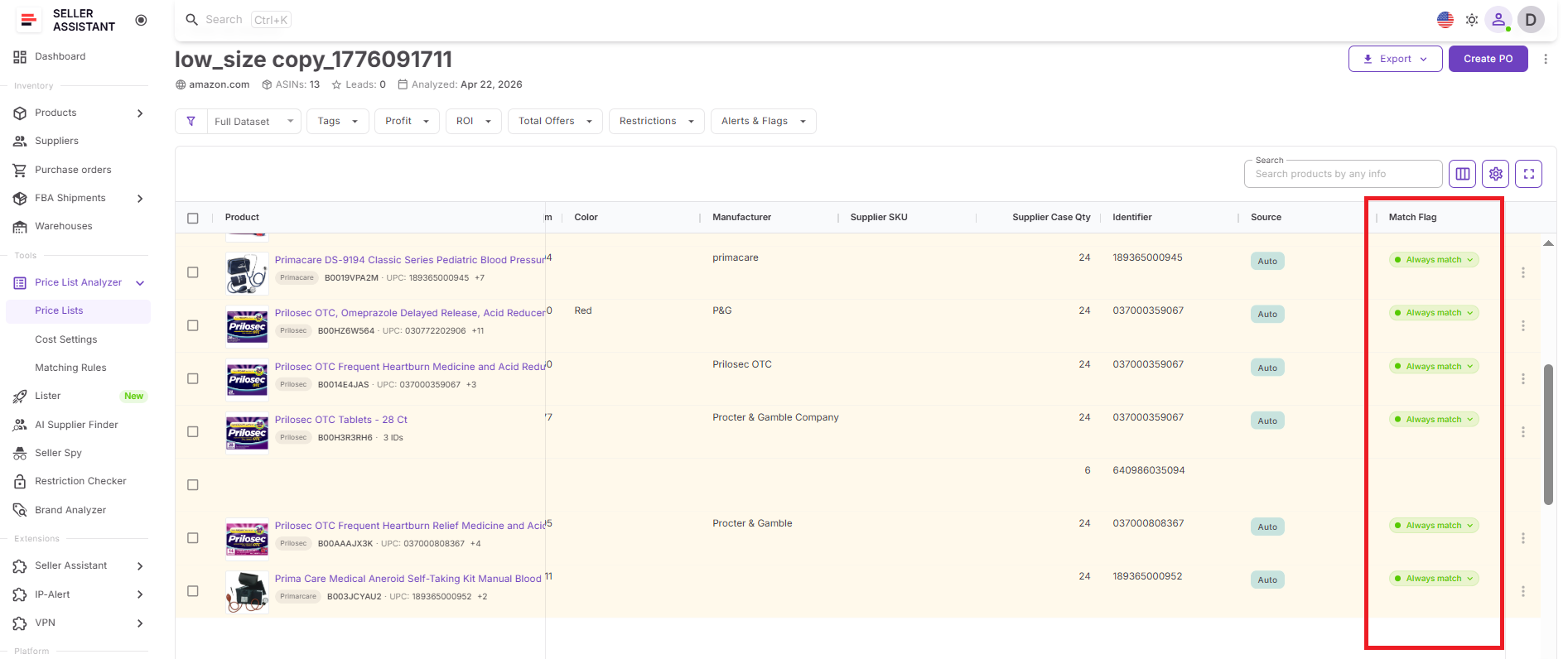
This means:
- known identifier–ASIN pairs are applied automatically
- new matches may be suggested if no data exists
- you can review and adjust matches directly in the table
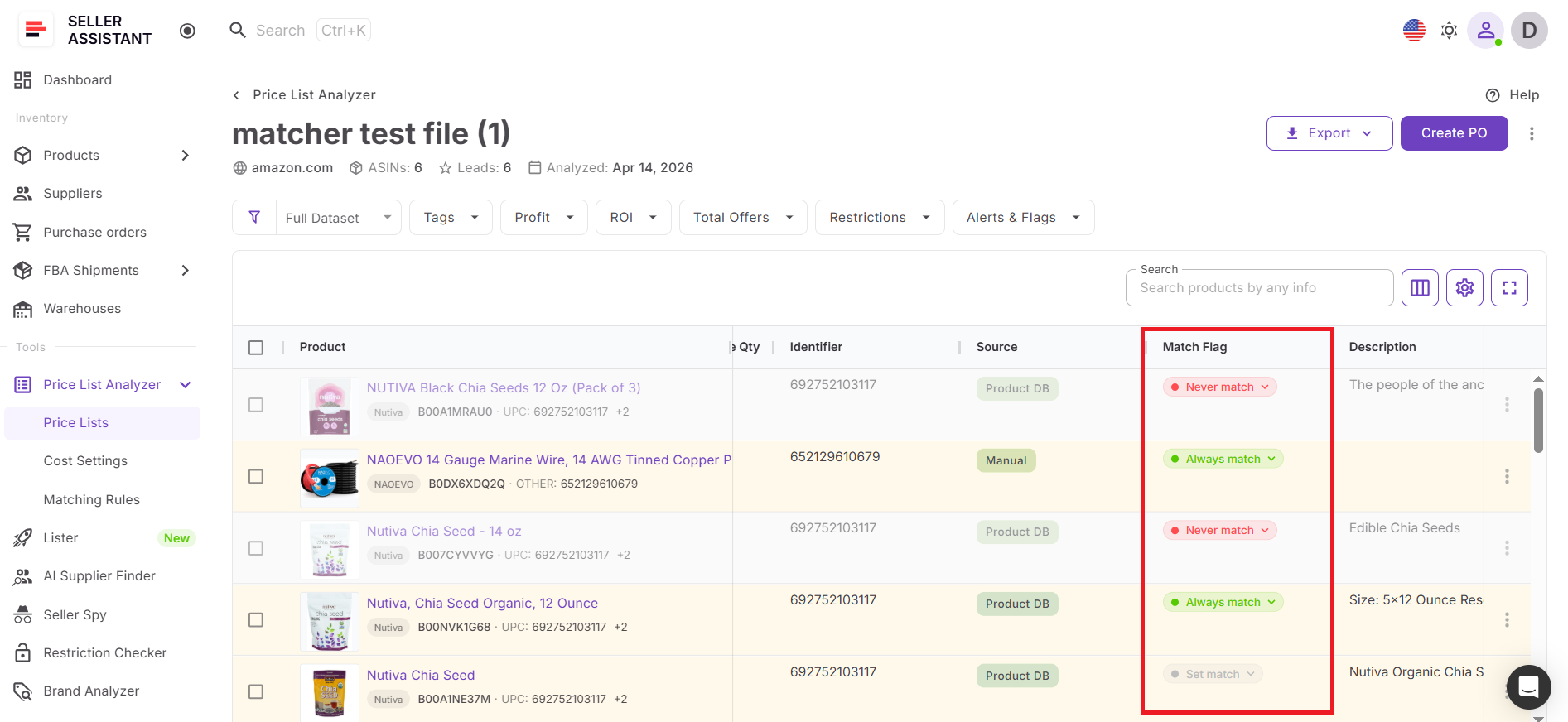
If an identifier is set to Never match, Price List Analyzer will skip that pair completely and not analyze it.
Why matching rules are needed
Automatic matching helps process large supplier lists quickly, but it is not always reliable. Supplier data can include incorrect UPCs, reused barcodes, or inconsistent identifiers.
At the same time, Amazon’s catalog may link similar identifiers to multiple listings.
This can result in:
- correct-looking but incorrect matches
- wrong profitability calculations
- poor sourcing decisions
Matching rules solve this by giving you control over which connections are valid.
How match decisions work
Each ASIN–identifier pair can have one of two match types:
- Always match – confirm the connection
Use this when the identifier correctly matches the product. It is stored in Product Database and reused automatically.
- Never match – block the connection
Use this when the identifier leads to the wrong ASIN. It is excluded from analysis and prevents repeated errors.
How you manage matching rules
Matching Rules is a separate feature inside Price List Analyzer that gives you full visibility into all matches.
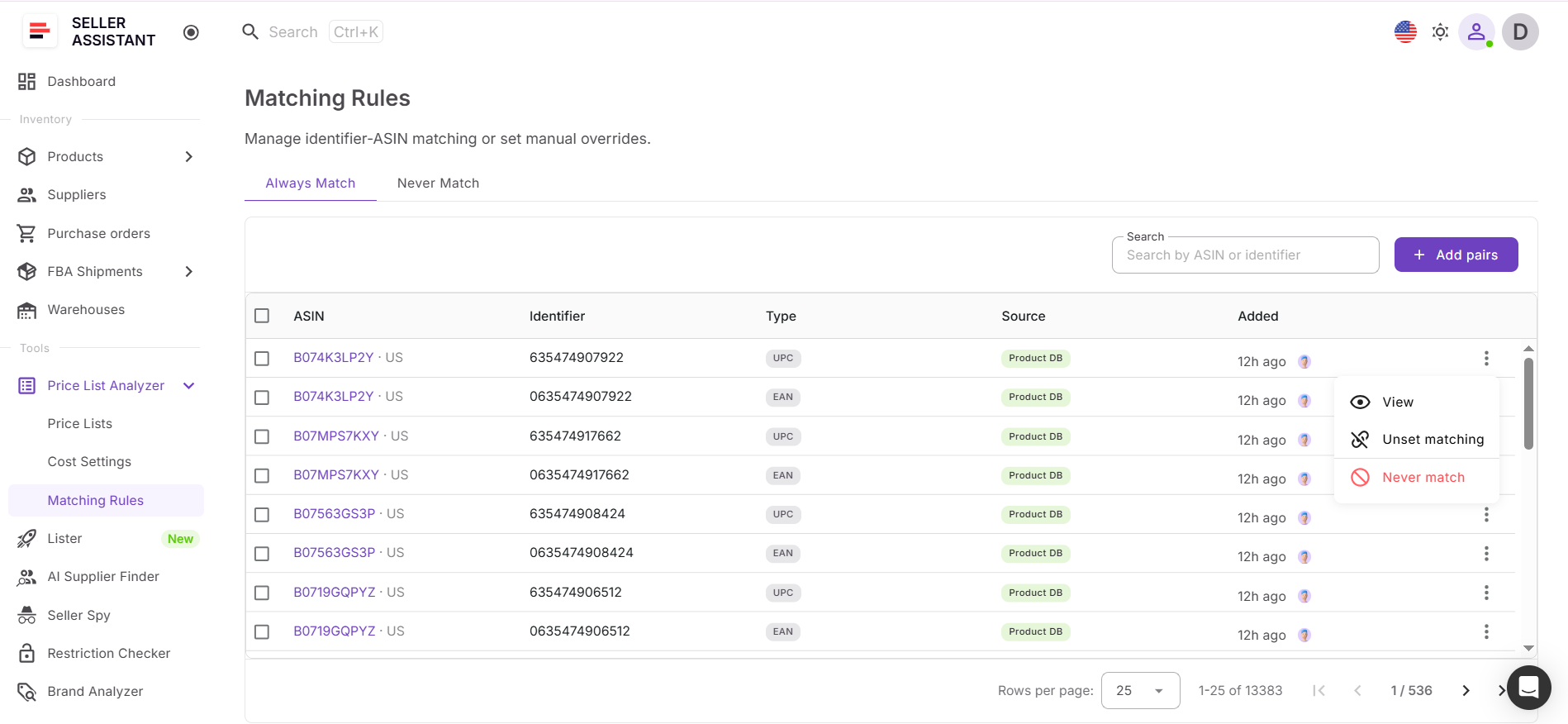
For each ASIN–identifier pair, it shows:
- ASIN
- identifier
- identifier type
- source (Product DB or Manual)
- date added
- match type
From here, you can:
- change match type (Always / Never)
- remove or unset matching
- review all existing connections in one place
You can also update match types directly from Product Database or within supplier offers.
How to Use the Match Flag System Step by Step
Using the match flag system means reviewing how product identifiers connect to ASINs and deciding which matches should be reused or blocked. You can manage this directly in Product Database, supplier offers, Price List Analyzer, and Matching Rules.
Step 1. Add products to Product Database
Start by adding products to Product Database. Products can come from Price List Analyzer, supplier files, or manual input.
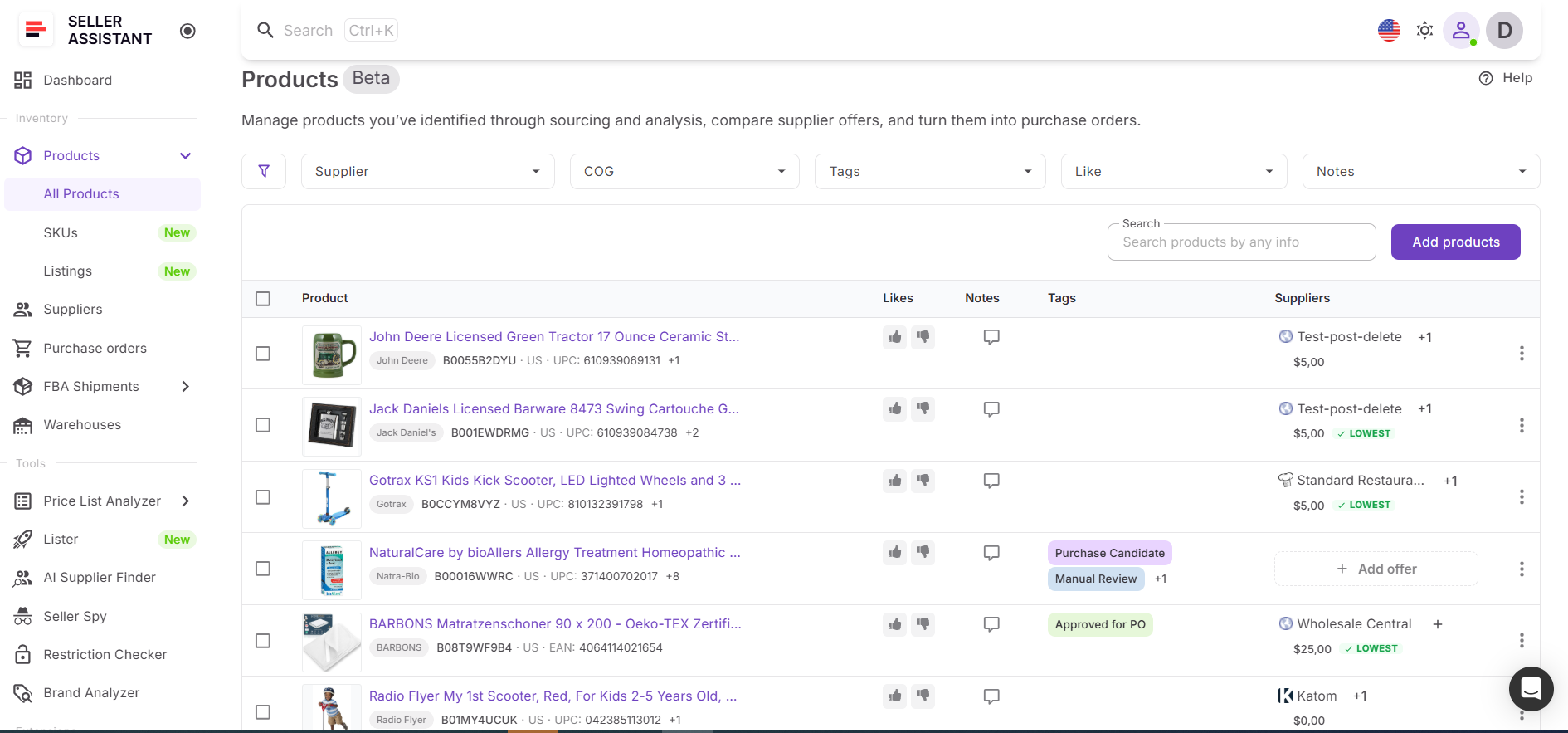
When a product is created, its identifiers are saved and set as Always match by default. The source is marked as Product DB unless you add the identifier manually.
Step 2. Review product identifiers
Open the product record and check the connected identifiers, such as UPC, EAN, or GTIN. Make sure each identifier belongs to the correct ASIN.
This step helps you catch supplier data issues before they affect bulk analysis.
Step 3. Add missing identifiers
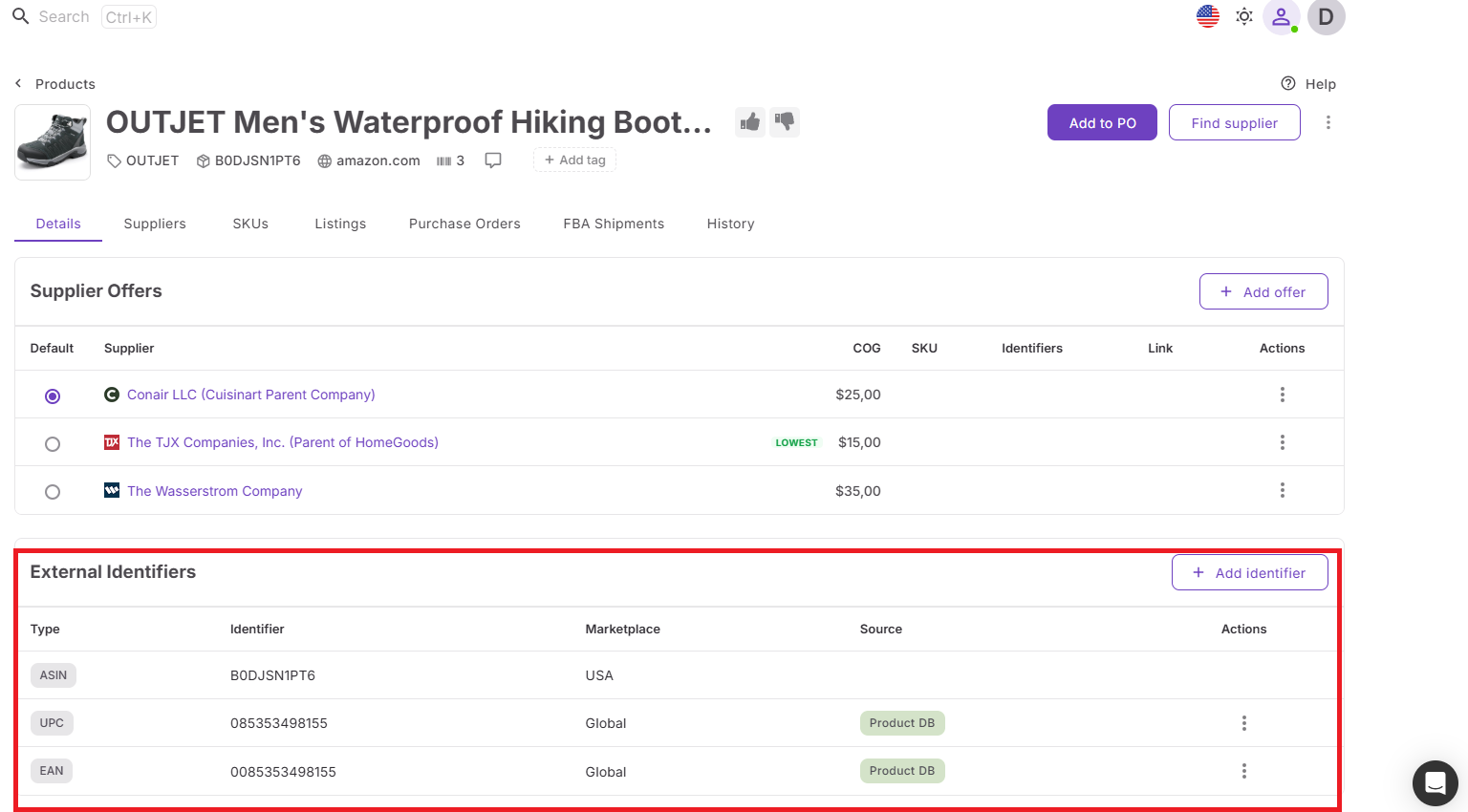
If an identifier is missing, add it manually in Product Database or in the supplier offer.
Manually added identifiers are marked with Manual source, so you can see which data was entered by a user and which was added automatically.
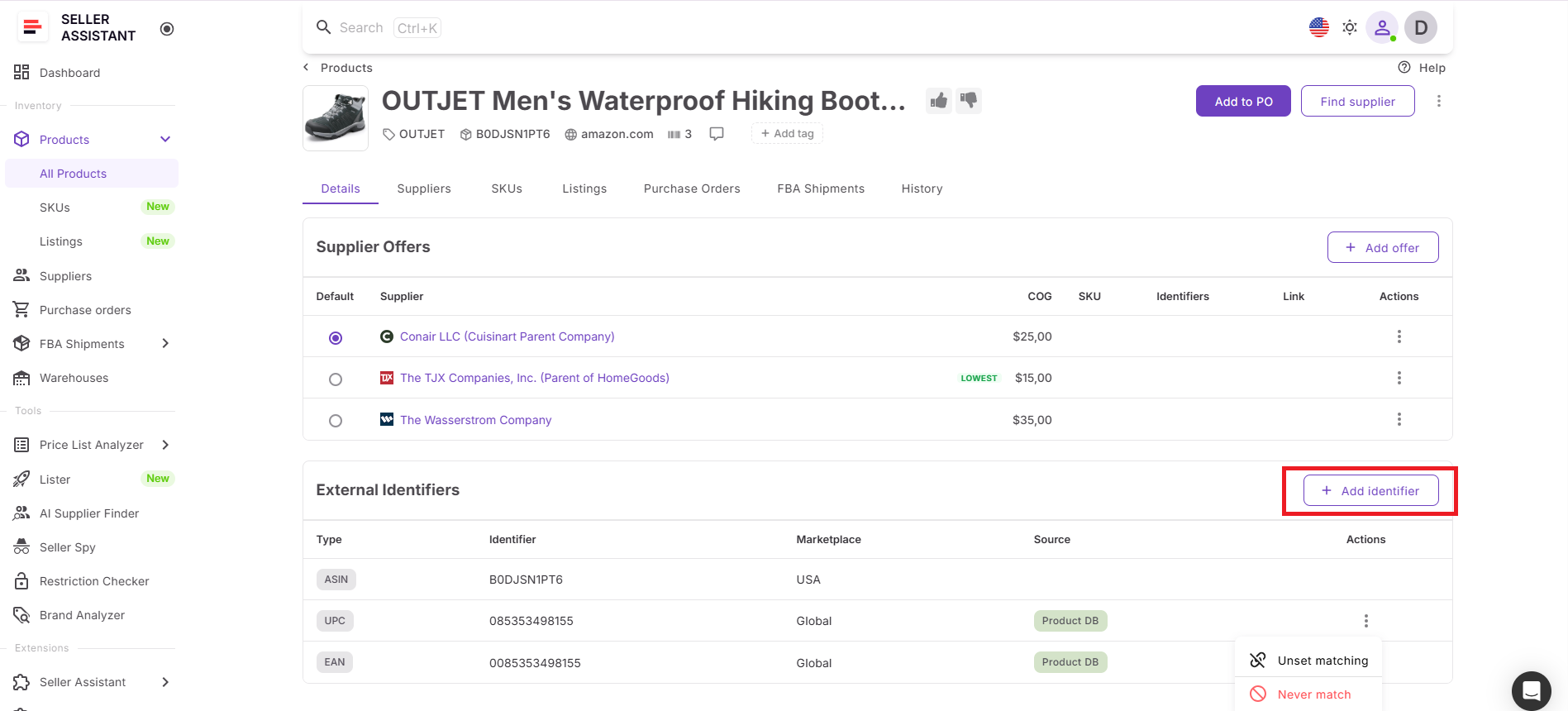
Step 4. Set correct matches as Always match
If the identifier correctly belongs to the ASIN, keep it as Always match.
This tells Seller Assistant to reuse this ASIN–identifier pair in future workflows, so you don’t need to validate it again.
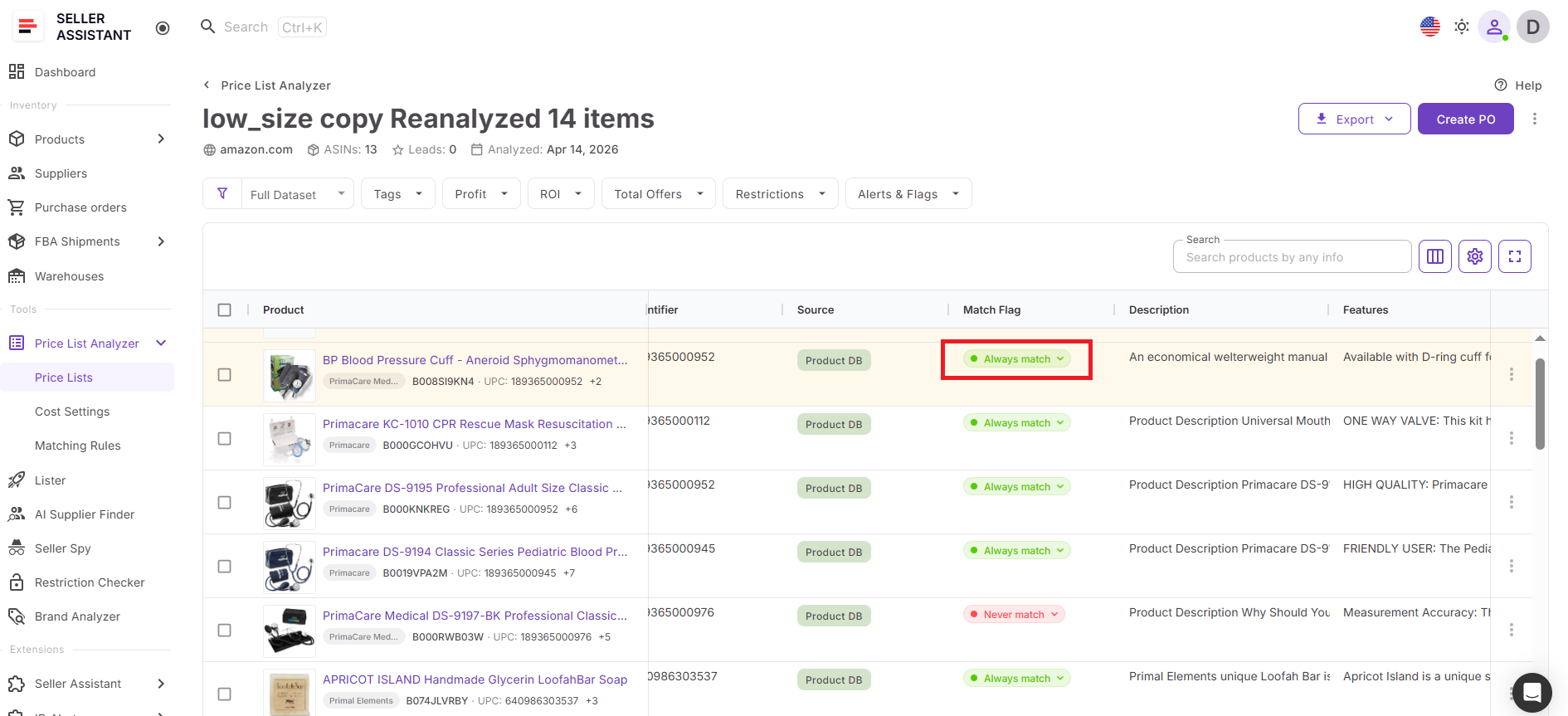
Step 5. Set wrong matches as Never match
If the identifier points to the wrong ASIN, change the match type to Never match.
Price List Analyzer will skip this pair during analysis, which prevents incorrect product data from appearing again.
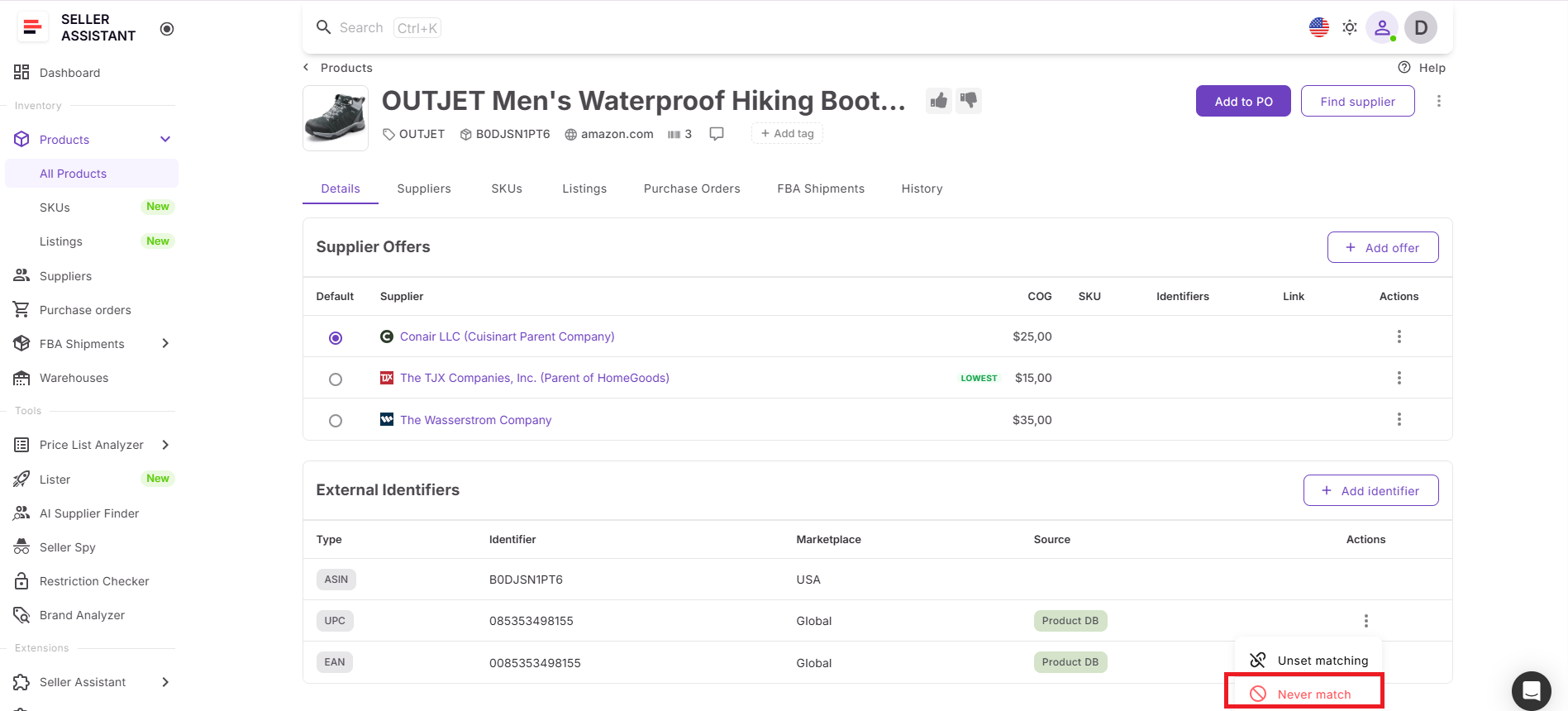
Step 6. Review matches in Price List Analyzer
When analyzing a supplier file, check how products are matched in Price List Analyzer. Confirm that the ASIN, identifier, product title, and supplier data line up correctly.
Use this step to catch mismatches before relying on profit, ROI, demand, or competition metrics.
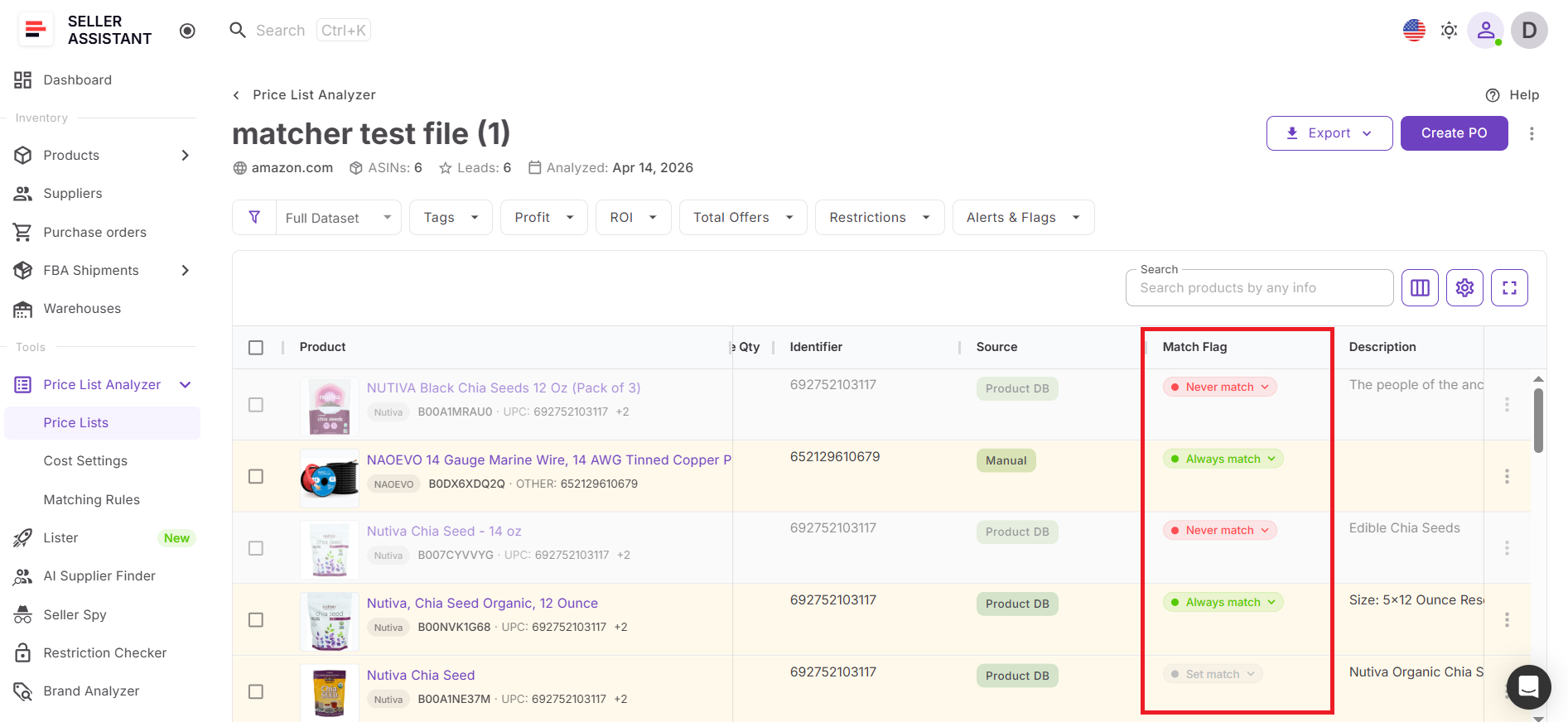
Step 7. Manage rules in Matching Rules
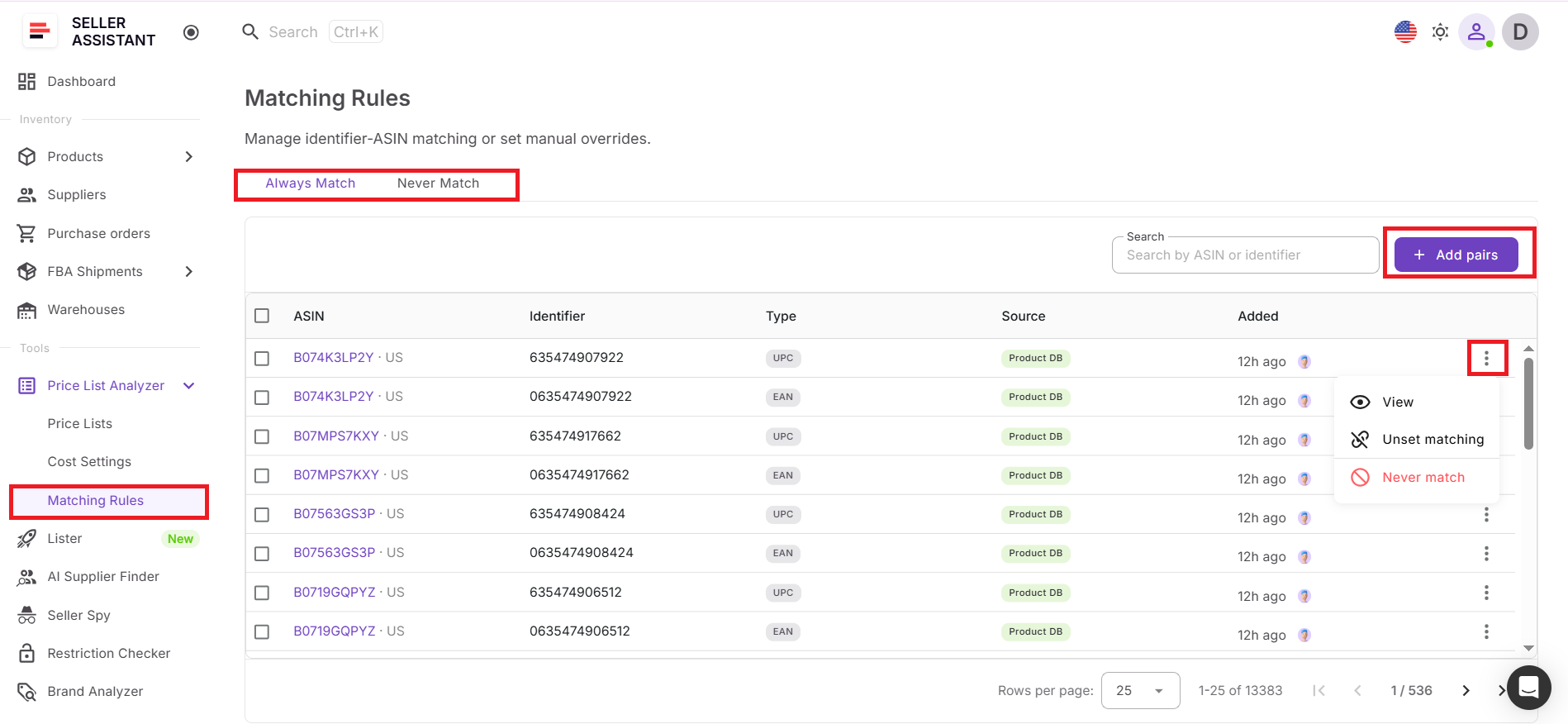
Open Matching Rules inside Price List Analyzer to review all ASIN–identifier pairs in one place.
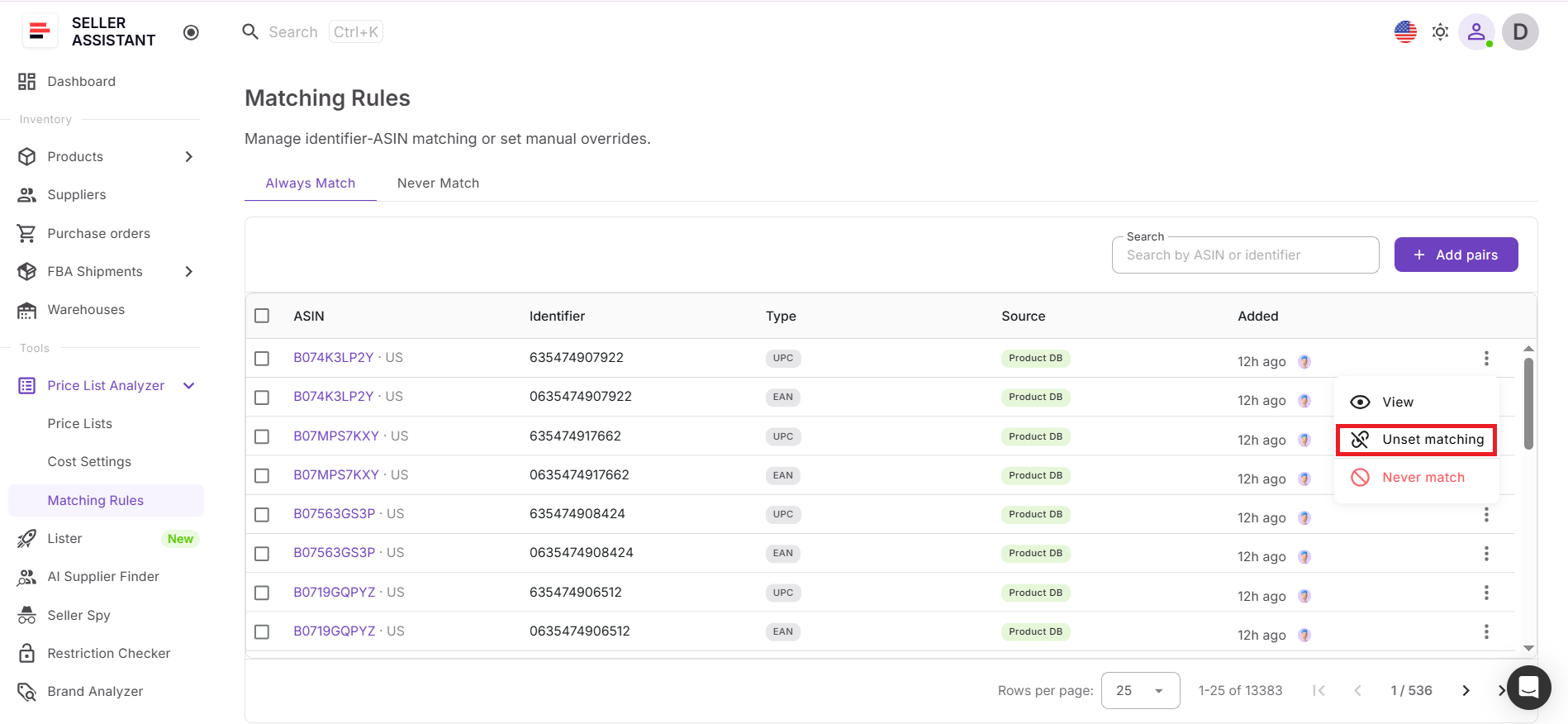
There you can see the ASIN, identifier, identifier type, source, date added, and match type. You can also change match type, unset matching, or remove incorrect connections from the product menu, or switch between Always match or Never match.
Step 8. Update decisions when data changes
If supplier data changes or you discover a better match, update the match type. You can switch between Always match and Never match, add new pairs, or unset matching when the connection should no longer be used.
This keeps your sourcing data accurate as your catalog grows.
FAQ
What is the difference between Always match and Never match?
Always match confirms that an identifier correctly belongs to an ASIN and should be reused in future workflows. Never match blocks incorrect pairs so they are excluded from analysis and don’t appear again.
Where can I manage ASIN–identifier matches?
You can manage matches in Product Database, supplier offers, and Price List Analyzer. Matching Rules inside PLA provides a full overview where you can review and update all pairs in one place.
What happens when I set a pair to Never match?
Price List Analyzer will skip that identifier–ASIN pair during analysis. This prevents incorrect product data from affecting your sourcing decisions.
Can I add my own identifiers manually?
Yes, you can add identifiers directly in Product Database or within supplier offers. These will be marked as Manual source and can be managed like any other match.
Do I need to check matches every time I upload a supplier file?
No, once you confirm or block matches, the system remembers your decisions. Over time, this reduces manual work and makes your sourcing process faster and more consistent.
Final Thoughts
ASIN–UPC matching is not just a technical step in sourcing – it’s the foundation of every decision you make. If the match is wrong, everything that follows – profit calculations, demand analysis, and buying decisions – becomes unreliable.
The match flag system in Seller Assistant gives you control over this process. Instead of relying on automatic matching, you can confirm correct connections, block incorrect ones, and build a system that improves over time. With Product Database storing your identifiers, Price List Analyzer applying them in bulk, and Matching Rules giving you full visibility, matching becomes structured and repeatable.
Seller Assistant automates and connects every stage of your Amazon wholesale and arbitrage workflow. It brings together in one platform: workflow management tools – Product Database, Purchase Orders Module, Suppliers Database, Warehouses Database, FBA Shipments, bulk research & sourcing tools – Price List Analyzer, Bulk Restriction Checker, Sourcing AI, Brand Analyzer, Seller Spy, Chrome extensions – Seller Assistant Browser Extension, IP-Alert Extension, and built-in VPN by Seller Assistant, and integrations & team access features – seamless API connectivity, integrations with Zapier, Airtable, and Make, and Virtual Assistant Accounts.